Skip to manual
Diraa
ManualsSign in
All role manuals

Diraa · Superadmin handbook

Superadmin manual

Run the marketplace with clear records and decisions

Manage access, review Guides, resolve request issues, and oversee operating processes.

English · Edition 1.3 · 12 October 2026

  1. 1Review
  2. 2Verify
  3. 3Support
  4. 4Reconcile
  5. 5Audit
Read the stepsDownload PDF

Read every chapter below, or use Contents to jump to a process. The optional PDF has the same explanations and steps.

Contents

  1. 01Your role and the daily operating cycle
  2. 02Sign in and manage your own access
  3. 03Review users and control access
  4. 04Deactivate an account without erasing history
  5. 05Review Guide requests and verify identity
  6. 06Inspect requests and understand their status
  7. 07Investigate issues and record resolutions
  8. 08Handle payment exceptions and manual settlement
  9. 09Read the audit trail
  10. 10Use platform reports correctly
  11. 11Send a useful platform email
  12. 12Stay informed and keep your account current
  13. 13Use a repeatable operating checklist
  14. Glossary & edition notes
Contents · 13 chapters
  1. 01Your role and the daily operating cycle
  2. 02Sign in and manage your own access
  3. 03Review users and control access
  4. 04Deactivate an account without erasing history
  5. 05Review Guide requests and verify identity
  6. 06Inspect requests and understand their status
  7. 07Investigate issues and record resolutions
  8. 08Handle payment exceptions and manual settlement
  9. 09Read the audit trail
  10. 10Use platform reports correctly
  11. 11Send a useful platform email
  12. 12Stay informed and keep your account current
  13. 13Use a repeatable operating checklist
  14. Glossary & edition notes

Chapter 01

Your role and the daily operating cycle

A Superadmin oversees platform access, Guide verification and exceptions. This role does not replace the customer or Guide in ordinary fulfilment.

Start the operating day

Before you start: Use only an account granted administrator access by an authorised operator.

  1. 1Open Home and review the request and user summaries.
  2. 2Check KYC for Guide submissions waiting for review.
  3. 3Check Issues for unresolved customer or Guide problems.
  4. 4Review Audit logs and Reports for actions or patterns that need attention.

What happens next: You have a prioritised list of operational work.

Keep in mind

  • Superadmin access is not a public sign-up choice. Protect the account and give administrator access only to authorised staff.
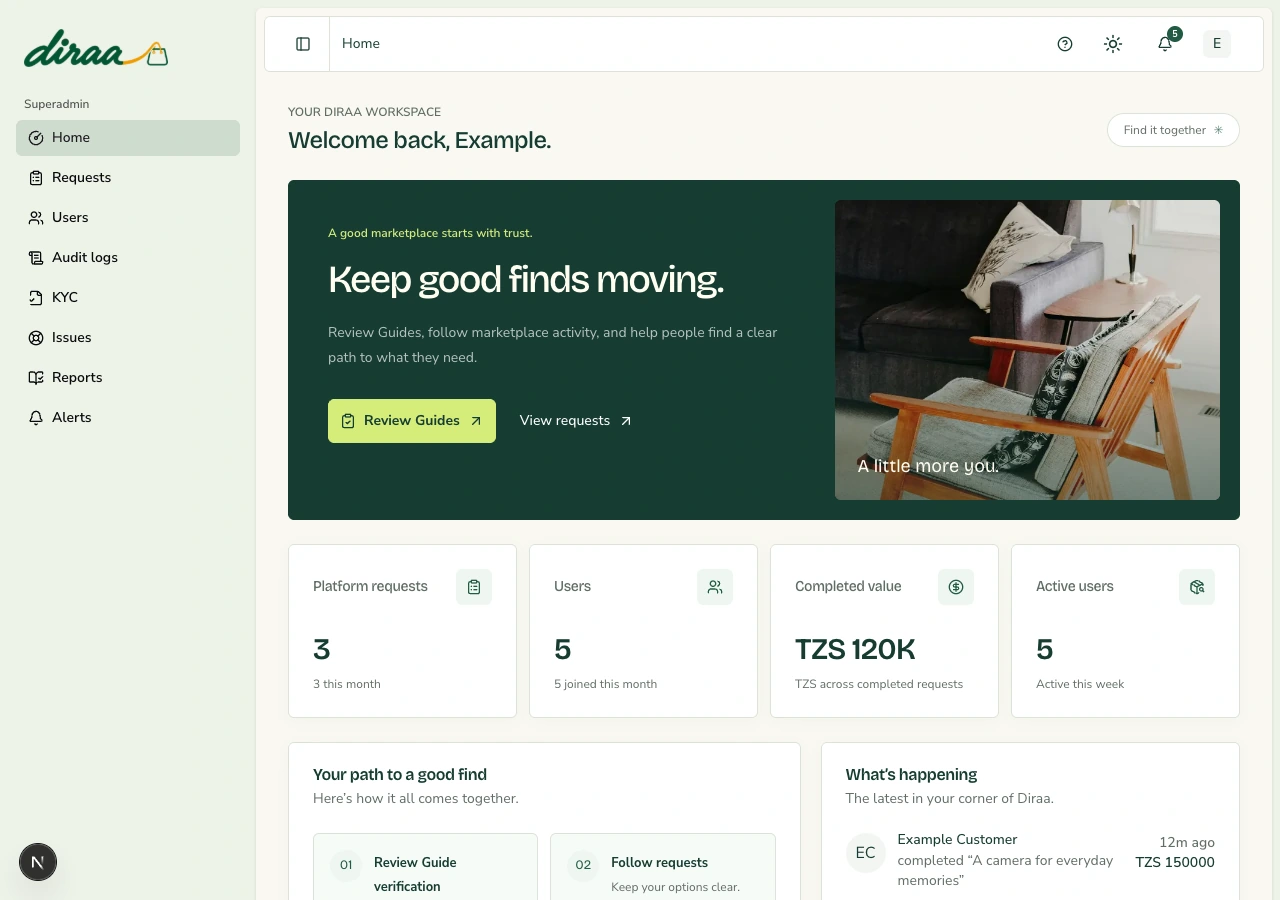
Diraa demonstration screen: Your role and the daily operating cycle
Demonstration records are shown. Names, amounts and business details are examples. Select the image to view it at full size.
Back to contents

Chapter 02

Sign in and manage your own access

Use individual administrator accounts so actions can be attributed to the right person.

Open the workspace safely

Before you start: Your administrator account already exists.

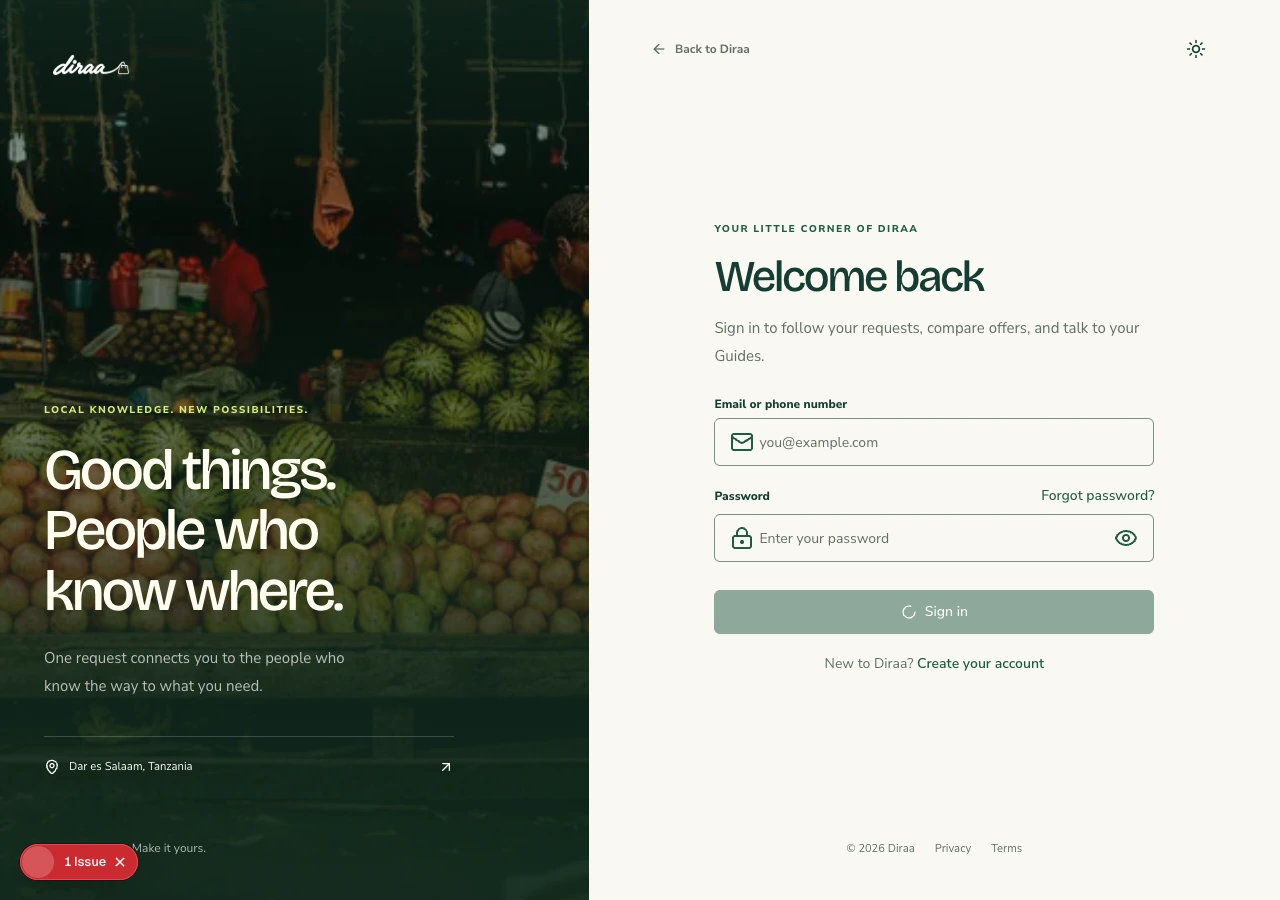
  1. 1Sign in at diraa.africa using your own account.
  2. 2Confirm that Users, KYC, Issues, Audit logs, Reports and Alerts are available in navigation.
  3. 3Use the profile icon for Profile or Log out; sign out on shared computers.

What happens next: You are in the administrator workspace.

Keep in mind

  • A password reset does not grant administrator access. Do not share passwords, one-time codes or the administrator account with colleagues.

Keep your profile details current

Before you start: Sign in using your own account.

  1. 1Use the top-bar profile icon to open Profile.
  2. 2Open Personal details, choose Edit Profile, and update the permitted personal or contact fields.
  3. 3Choose Save Changes and wait for confirmation. Use Cancel to abandon an edit.
  4. 4Use the profile-photo control to choose an appropriate image, and wait until its upload finishes.

What happens next: Your saved details and photo are available for the permitted account and delivery uses.

Keep in mind

  • Changing profile details does not change your role or complete Guide verification. Keep contact details useful for fulfilment.
Diraa demonstration screen: Sign in and manage your own access
Demonstration records are shown. Names, amounts and business details are examples. Select the image to view it at full size.
Back to contents

Chapter 03

Review users and control access

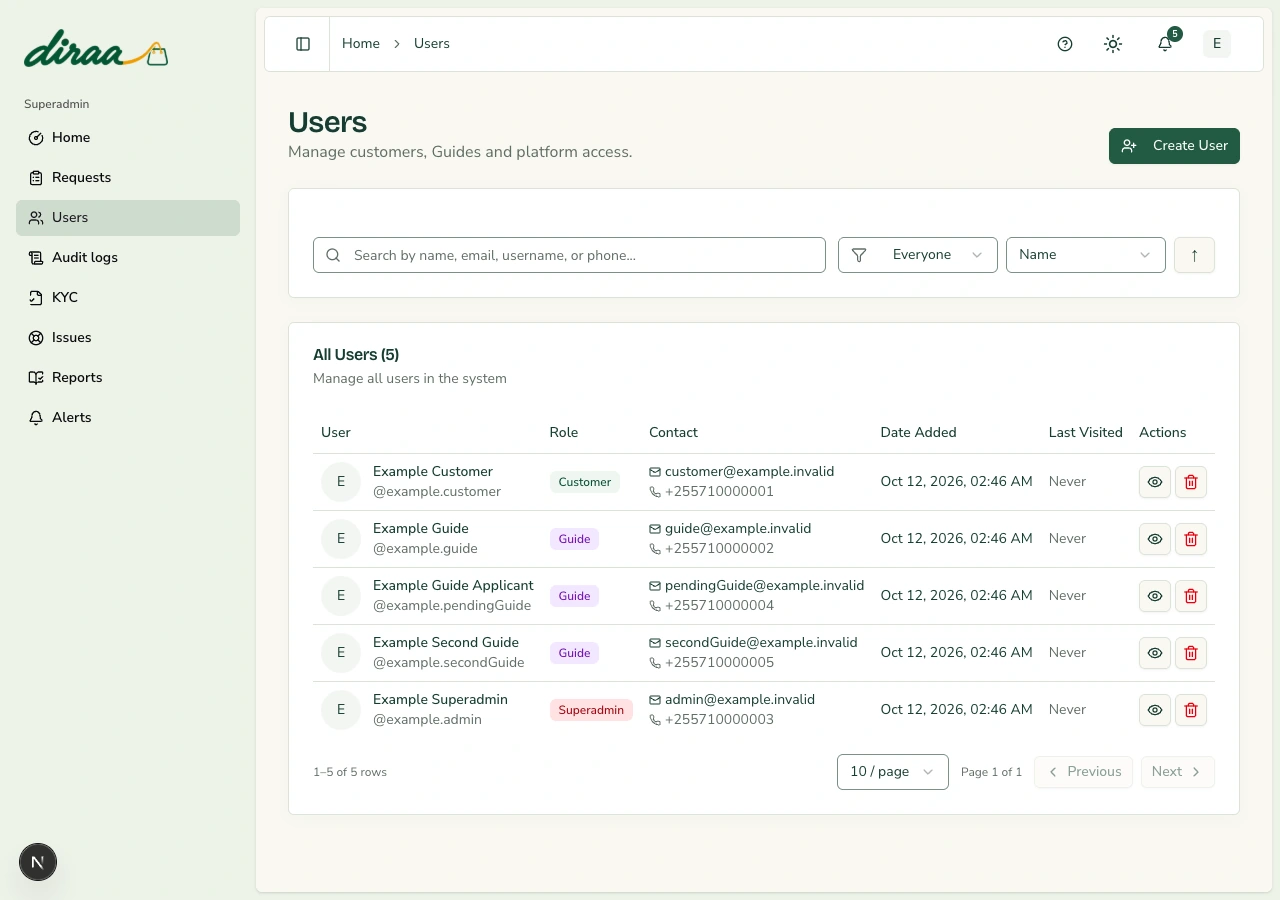
The Users page provides search, role filtering, pagination, account creation and account details.

Find and inspect an account

Before you start: Have the person's name, email, username or phone number.

  1. 1Choose Users and search for the account.
  2. 2Use the role filter and page controls if needed.
  3. 3Select the row's view button to inspect the account details.
  4. 4In Role Management, change a role only after confirming the person is authorised. The change is applied immediately.

What happens next: You can review the account and apply an authorised access decision.

Keep in mind

  • Administrator access exposes sensitive operating information. Prefer the least access the person needs.

Create an account for an authorised person

Before you start: Confirm the identity, role and approved private handover process.

  1. 1Choose Create User and enter the requested account details.
  2. 2Choose the correct role. A Guide must still meet business-verification requirements.
  3. 3Set and hand over the initial access details using the approved private process.
  4. 4Ask the recipient to use their own credentials and reset the password where appropriate.

What happens next: The new account is recorded with its assigned role.

Keep in mind

  • Do not put passwords or verification codes into bulk emails, issue remarks or audit notes.
Diraa demonstration screen: Review users and control access
Demonstration records are shown. Names, amounts and business details are examples. Select the image to view it at full size.
Back to contents

Chapter 04

Deactivate an account without erasing history

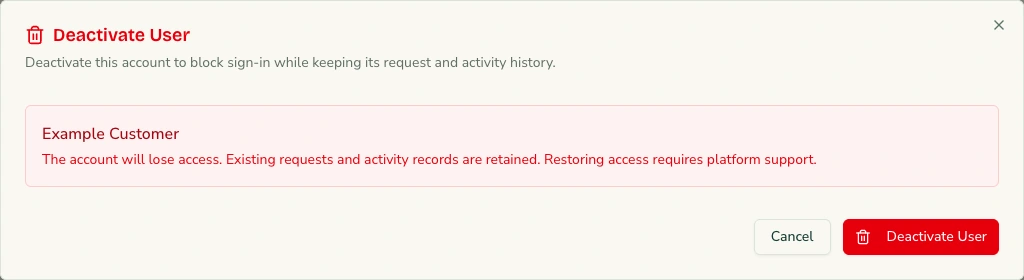
Deactivation blocks access while preserving requests and recorded activity. It is not permanent deletion.

Deactivate an account

Before you start: Confirm the account and the business reason before changing access.

  1. 1Open Users and find the exact account.
  2. 2Choose its deactivation button and read the confirmation.
  3. 3Check the person's identity again, then choose Deactivate User.
  4. 4Record and follow the organisation's access-review decision; ask platform support if access must later be restored.

What happens next: The account cannot sign in; existing records remain available.

Keep in mind

  • The current Users page does not provide a restore-access button. Deactivation does not cancel orders, refund payments, or settle Guide obligations. Review any active requests separately.
Diraa demonstration screen: Deactivate an account without erasing history
Demonstration records are shown. Names, amounts and business details are examples. Select the image to view it at full size.
Back to contents

Chapter 05

Review Guide requests and verify identity

Guide-role approval and KYC approval are separate decisions. Paid subscription access follows verified KYC.

Approve or return a Customer’s Guide request

Before you start: A Customer has confirmed a request to become a Guide.

  1. 1Open KYC and find Guide requests.
  2. 2Open Review for the Customer. Approve the role request, or return it with a clear reason.
  3. 3Approval changes the account to Guide. Active web sessions refresh into the Guide dashboard; the user is notified by email and push.
  4. 4Wait for the new Guide to submit identity KYC. Review that submission separately.

What happens next: The approved person becomes a Guide but cannot receive requests until KYC is approved and a bundle is paid.

Keep in mind

  • Role approval takes the Customer into their Guide dashboard. Identity verification is completed separately on its KYC page; no Business Licence or TIN is requested.

Make a documented verification decision

Before you start: Have the submitted business details and the evidence needed by your verification policy.

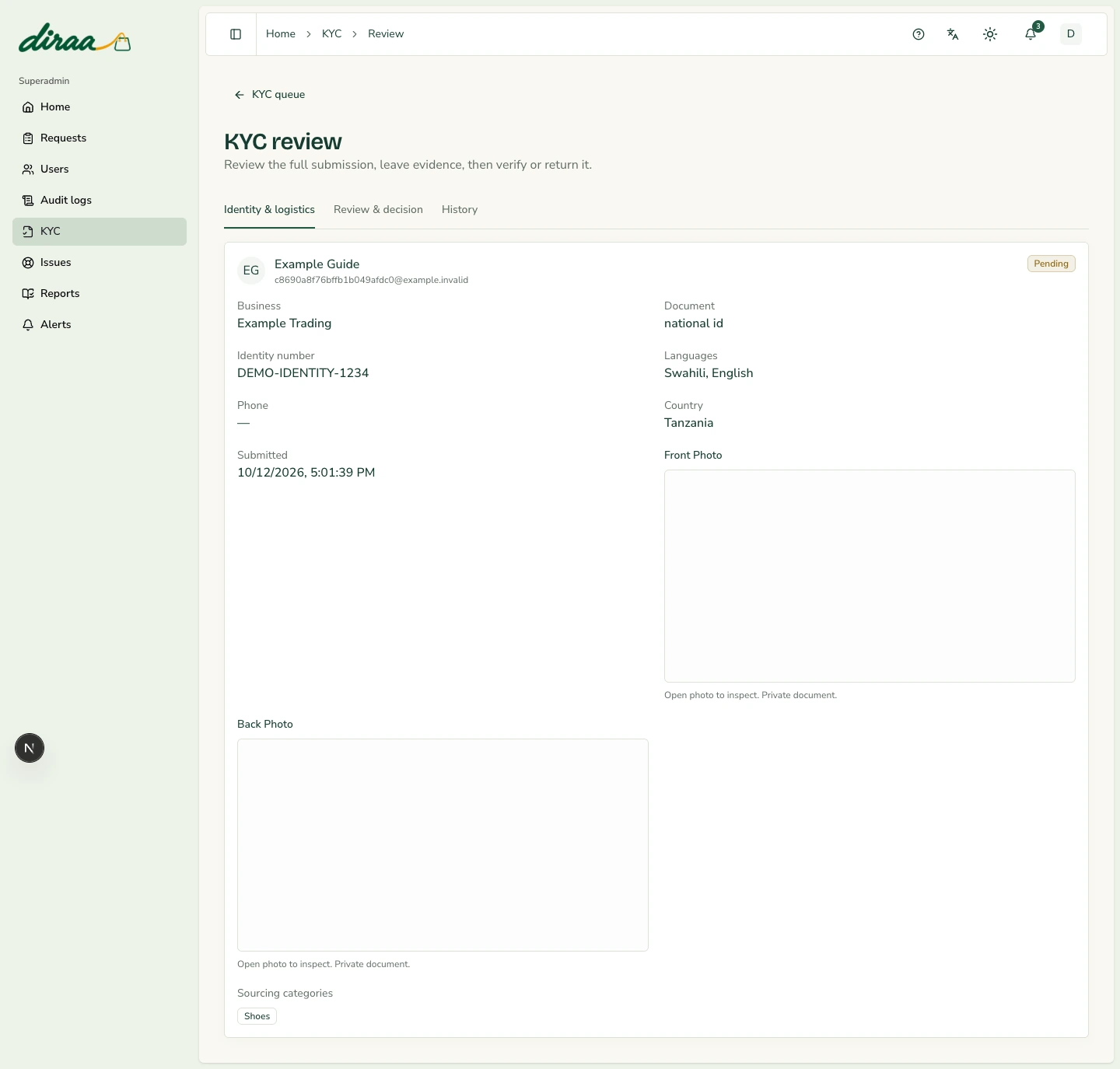
  1. 1Open KYC and choose the Guide submission.
  2. 2Review the selected identity type and number, both private document photos, country of residence, spoken languages and sourcing categories.
  3. 3Write a remark describing what you checked and any required correction.
  4. 4Choose Verify when satisfied, or Return when changes are needed.

What happens next: The decision and remarks are saved. Verified Guides can purchase a bundle; new requests remain locked until payment is confirmed.

Keep in mind

  • A pending or returned Guide cannot source requests. Do not approve a submission merely to clear the queue, or invent evidence. The current screen records business details; evidence collection can require a separate approved process.
Diraa demonstration screen: Verify or return a Guide submission
Demonstration records are shown. Names, amounts and business details are examples. Select the image to view it at full size.
Back to contents

Chapter 06

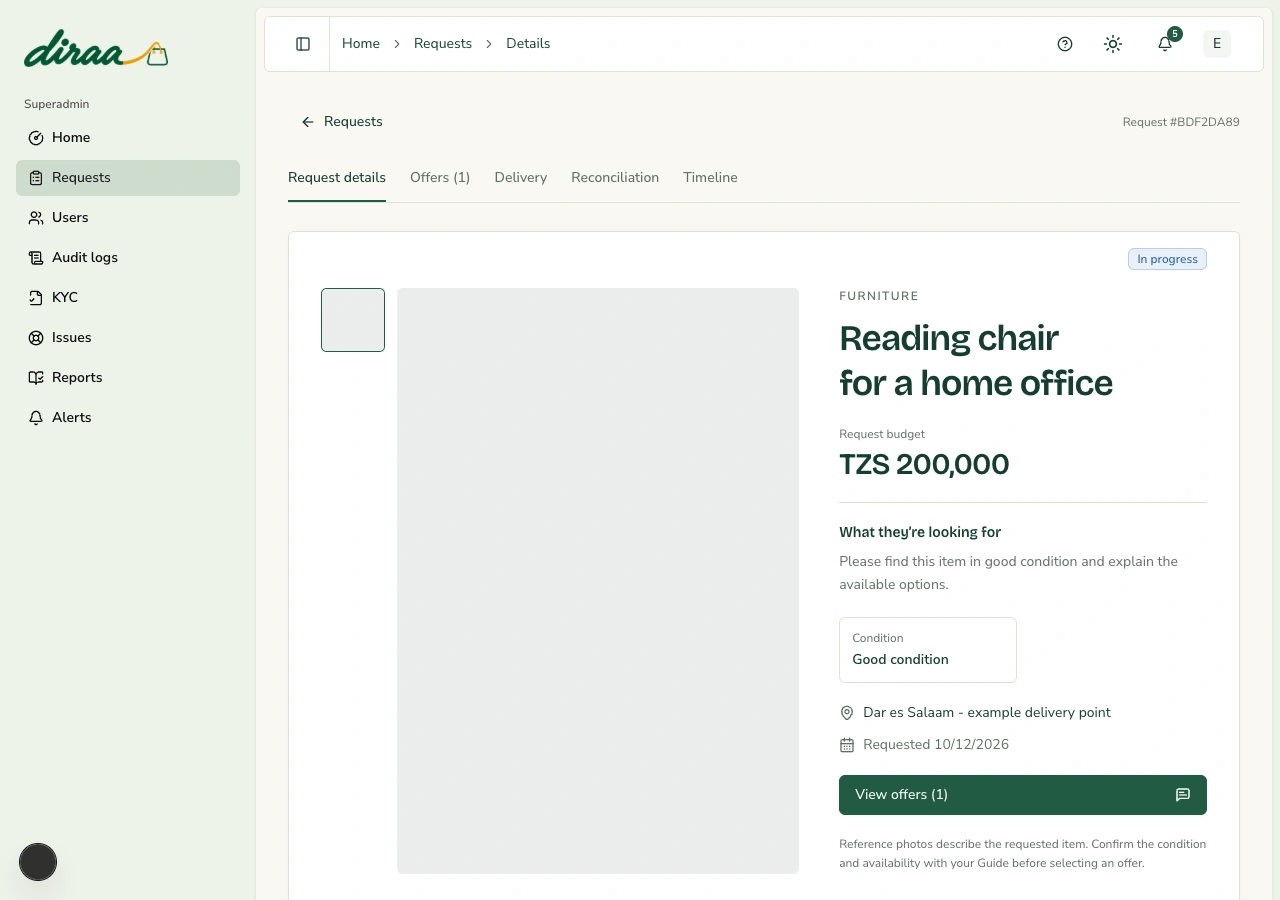
Inspect requests and understand their status

The request is the shared record of the agreed item, offers, delivery point and outcome.

Review the whole request

Before you start: Have a request ID or locate the item in Requests.

  1. 1Open Requests and select the item.
  2. 2Use Request details for the specification, Offers for proposals, and Delivery for agreed terms, route and selected-party contacts.
  3. 3Use Reconciliation for confirmations and Timeline for recorded actions and remarks.
  4. 4Use that record to investigate a support problem before deciding what to do.

What happens next: You can distinguish a new request, accepted work and a completed outcome.

Keep in mind

  • Payment pending is not paid. The route is an estimate, not a courier commitment. Customer and Guide contact details are for authorised fulfilment and support only.
Diraa demonstration screen: Inspect requests and understand their status
Demonstration records are shown. Names, amounts and business details are examples. Select the image to view it at full size.
Back to contents

Chapter 07

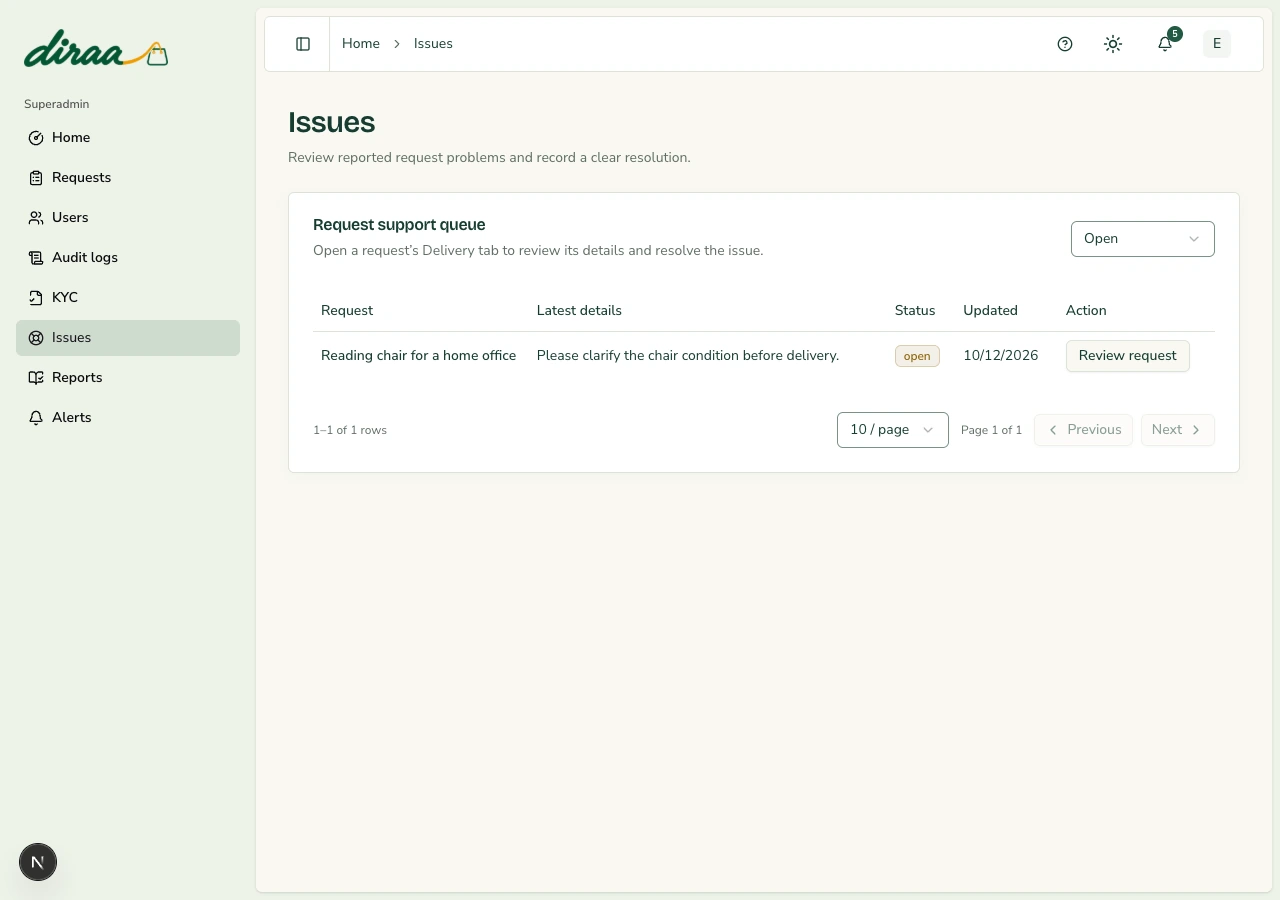
Investigate issues and record resolutions

The Issues queue now uses reported request problems. An empty queue means there are no matching recorded issues.

Resolve a reported request problem

Before you start: A customer or selected Guide has reported an issue.

  1. 1Open Issues and choose Open, Resolved or All issues. Use the page controls if needed.
  2. 2Choose Review request to open Delivery. Read the reported problem, agreed offer and Timeline.
  3. 3Contact the relevant parties using the authorised request contact options and verify the facts.
  4. 4Choose Record resolution, explain the outcome and actions taken, then choose Save resolution.

What happens next: The issue becomes resolved, its history is preserved, and eligible users receive an update.

Keep in mind

  • Open issues pause completion and new payment attempts. Saving a resolution does not send a refund or money transfer; verify any outside payment action before describing it as completed.
Diraa demonstration screen: Investigate issues and record resolutions
Demonstration records are shown. Names, amounts and business details are examples. Select the image to view it at full size.
Back to contents

Chapter 08

Handle payment exceptions and manual settlement

Snippe collects payments. Guide payouts and refunds are separate manual operating tasks in this MVP. New request and subscription payments add a separately recorded 3% platform fee. Guide bundle totals are TZS 1,030 daily, 3,090 weekly and 12,360 monthly.

Investigate a payment concern

Before you start: Have the request ID, agreed amount, currency and any provider reference.

  1. 1Read the Diraa request and payment outcome reported by the customer.
  2. 2Have the authorised finance operator check the transaction in the correct payment-provider account.
  3. 3Match the reference, amount, currency and status to the request. A screenshot of a payment prompt is not confirmation.
  4. 4If funds arrived after cancellation or need review, prevent duplicate payment and follow the approved resolution process.

What happens next: You have a verified financial outcome to support the decision.

Keep in mind

  • Do not invent a refund status. If Diraa shows payment under review, reconcile it with the provider before another payment is attempted.

Complete a Guide settlement or refund through the approved process

Before you start: The authorised operator has confirmed the payable or refundable amount.

  1. 1Confirm the recipient, reason, amount and approval required by the business.
  2. 2Have the authorised finance person perform the transaction through the approved payment channel.
  3. 3Verify the completed transfer or refund using the provider or bank reference.
  4. 4Keep an approved operating record containing the request ID, recipient, amount, currency, date, reference and responsible operator. Record a related support resolution only after verifying the outcome.

What happens next: Money movement is supported by a real reference and an operating record.

Keep in mind

  • Diraa's completed-value cards are not payout balances. There is no automatic refund or payout button in the current workspace.
Back to contents

Chapter 09

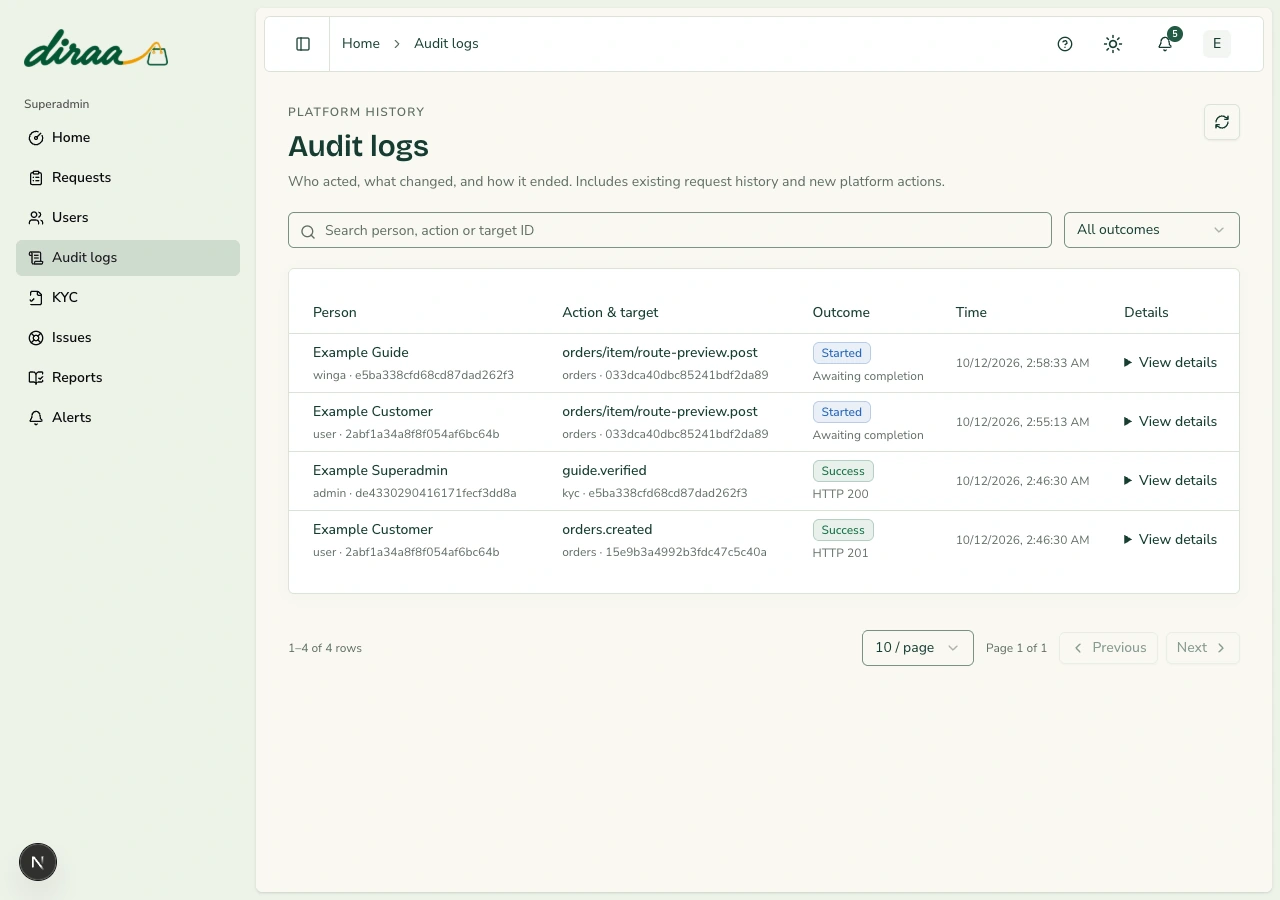
Read the audit trail

Audit logs help answer who did what, when it happened, and whether it succeeded or was blocked.

Investigate a recorded action

Before you start: Know the user, request or approximate time involved.

  1. 1Open Audit logs and use the available search, filters and date controls.
  2. 2Review the actor, action, resource, time, outcome and recorded details.
  3. 3Use table page controls to reach older entries, and compare the record with the request Timeline.
  4. 4Escalate unexplained access or repeated failures to the responsible operator.

What happens next: You have evidence for a support or operating investigation.

Keep in mind

  • A blocked action may be rate limiting rather than wrongdoing. Audit details should not be treated as a place to store passwords, PINs or card data.
Diraa demonstration screen: Read the audit trail
Demonstration records are shown. Names, amounts and business details are examples. Select the image to view it at full size.
Back to contents

Chapter 10

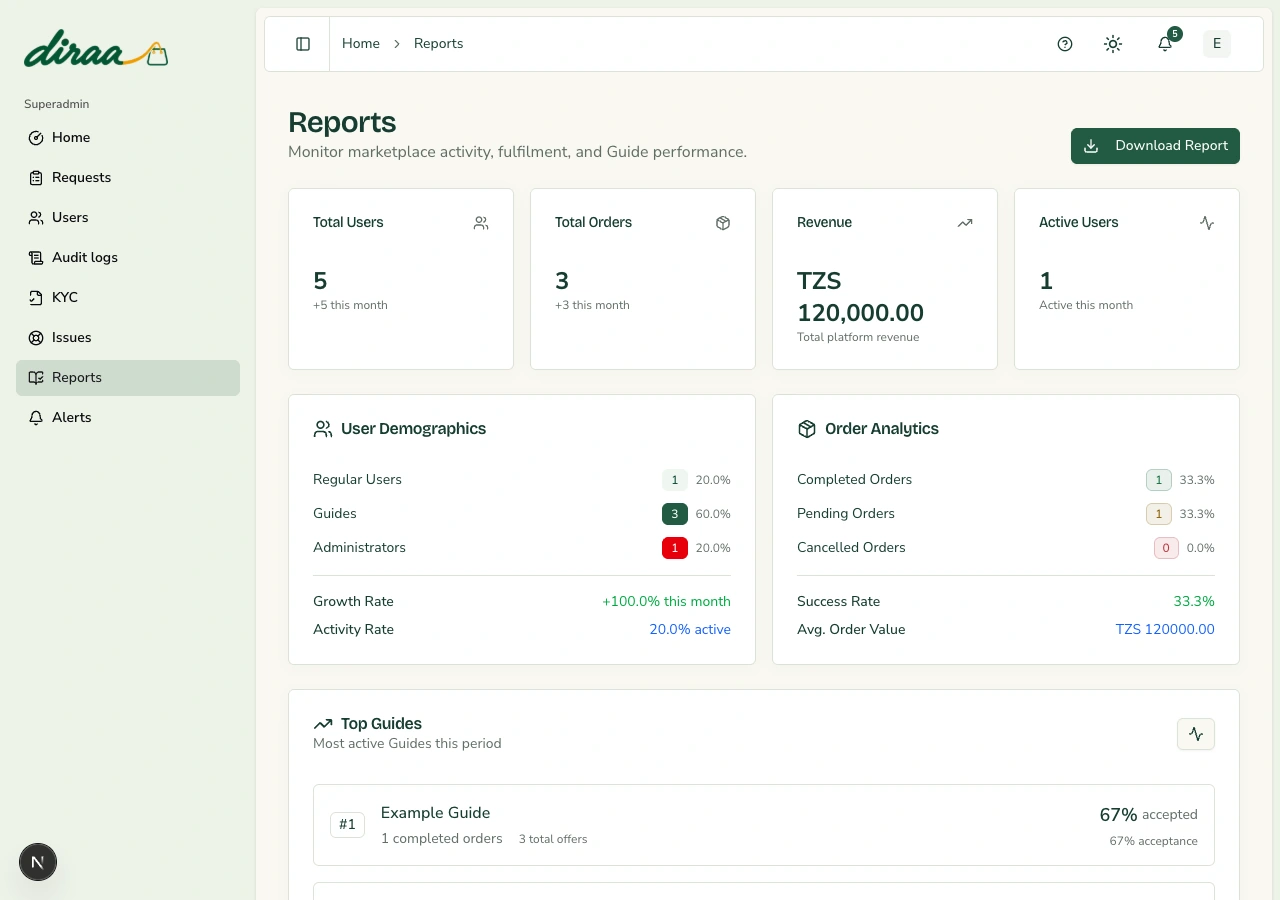
Use platform reports correctly

Reports describe recorded platform activity. They do not prove a Guide has been paid.

Review and export a report

Before you start: Decide the reporting period and question you need to answer.

  1. 1Open Reports and choose the available date-range filter.
  2. 2Review users, request counts, completed value and Guide activity.
  3. 3Read offer-acceptance percentages as operational counts, not customer ratings.
  4. 4Use the report's PDF export control when you need an offline copy.

What happens next: You have a report based on recorded activity.

Keep in mind

  • Completed values use agreed offer prices. Report periods and provider settlement periods can differ; reconcile financial records separately.
Diraa demonstration screen: Use platform reports correctly
Demonstration records are shown. Names, amounts and business details are examples. Select the image to view it at full size.
Back to contents

Chapter 11

Send a useful platform email

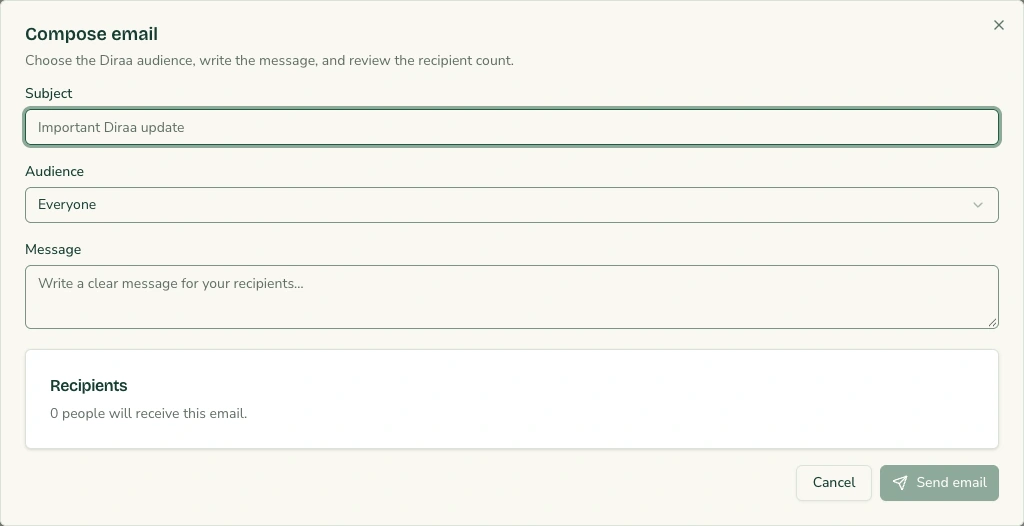
Alerts sends email. It is separate from the bell inbox and browser-push settings.

Compose an approved audience email

Before you start: Have a legitimate purpose, approved wording and the intended recipients.

  1. 1Open Alerts and choose Compose email.
  2. 2Choose the audience and, when applicable, select specific recipients.
  3. 3Write a clear subject and message, then check the recipient count.
  4. 4Review the message and choose Send email only when the audience and wording are correct.

What happens next: The service reports whether the email send succeeded.

Keep in mind

  • Do not include private account, payment or identity information in a broad email. Email success is not proof that every recipient opened the message.
Diraa demonstration screen: Send a useful platform email
Demonstration records are shown. Names, amounts and business details are examples. Select the image to view it at full size.
Back to contents

Chapter 12

Stay informed and keep your account current

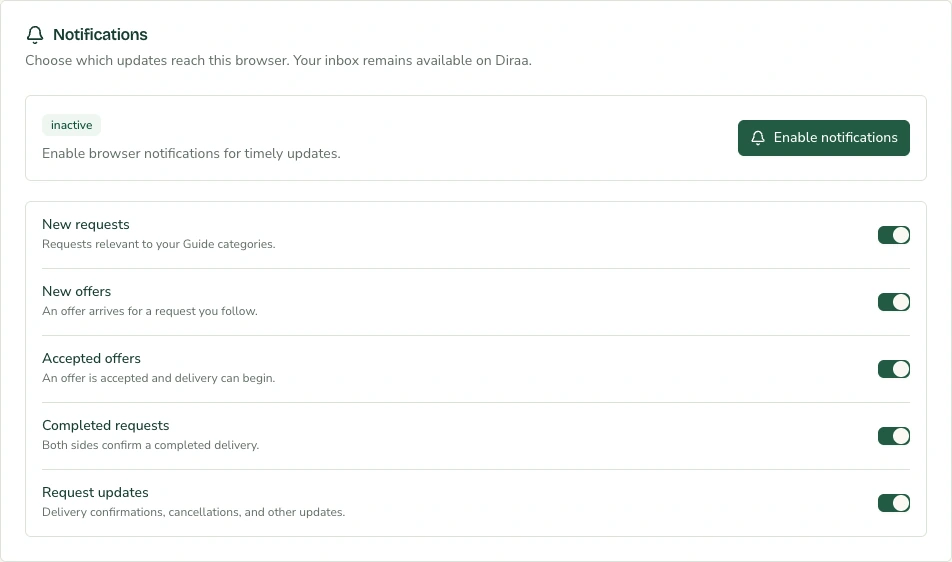
The bell shows updates inside Diraa. Browser notifications are optional and must be enabled on each device.

Read and clear notifications

Before you start: Sign in to your workspace.

  1. 1Select the bell in the top bar. Open an update to visit its request or account page.
  2. 2Use Mark as read for a single update, or Mark all as read to clear the current unread list.
  3. 3Refresh the page if needed. Read updates should stay read; a genuinely new event may add another unread update.

What happens next: Your notification inbox reflects what you have already read.

Enable notifications on a device

Before you start: Use a supported browser and open Diraa over HTTPS.

  1. 1Open the profile menu, choose Profile, then open the Notifications tab.
  2. 2Choose Enable notifications and allow the browser permission when prompted.
  3. 3Choose the types of updates you want. Changes are saved as you change the controls.
  4. 4Repeat on every phone or laptop you use. If permission is blocked, allow it in that browser's site settings and try again.

What happens next: The device is registered to receive eligible updates.

Keep in mind

  • Permissions, browser support, device settings and connectivity affect delivery. On an iPhone or iPad, use a supported Home Screen web app where required. Do not rely only on a push alert; check your Diraa inbox.
  • These are device notifications, which can appear when Diraa is in the background or its tab is closed. A completely closed browser, blocked operating-system notifications or an offline device can prevent alerts.
Diraa demonstration screen: Stay informed and keep your account current
Demonstration records are shown. Names, amounts and business details are examples. Select the image to view it at full size.
Back to contents

Chapter 13

Use a repeatable operating checklist

Keep account decisions, support outcomes and money movement clear and accountable.

Close the operating day

Before you start: Review unresolved work before signing out.

  1. 1Check open Issues and unreviewed KYC submissions.
  2. 2Confirm that important decisions have useful remarks and an identifiable responsible operator.
  3. 3Reconcile any payment exception, refund or Guide settlement against real provider records.
  4. 4Record outstanding work for the next authorised operator and sign out of the shared device.

What happens next: The next operator can continue without guessing.

Keep in mind

  • Before a public launch, check real payment settlement and notifications on the actual supported phones and laptops. Documentation is not a substitute for those acceptance checks.
Back to contents

Glossary & edition notes

Request
A description of something a customer wants a Guide to find.
Guide
A verified sourcing person or business that sends offers and arranges fulfilment.
Offer
A Guide's proposed price, delivery time and explanation.
KYC
Identity verification using a valid document, its number, two photos and residence details.
Delivery point
The place where the customer wants to receive the item.
Reconciliation
The completion-review tab where the customer and Guide confirm what happened.
Settlement
The actual movement of collected money to its intended recipient. A completed request is not proof of a payout.
Audit log
A dated record of an action, who performed it, and its result.

Screenshots use demonstration accounts and records captured from the Diraa interface. They do not show real customer information. Amounts and business details are examples. This manual describes the MVP as of 12 October 2026; later screens and processes may change.

If you cannot sign in or open a request, use Diraa’s published contact number: +255 676 907 776. Have your request ID ready when relevant.

Documentation design references
  • Atlassian how-to article template
  • GitBook documentation structure guidance

Diraa user manuals · English edition · 12 October 2026

HomeContact DiraaPrivacyTerms