Skip to manual
Diraa
ManualsSign in
All role manuals

Diraa · Customer handbook

Customer manual

From your first idea to a confirmed delivery

Create clear requests, compare offers, pay securely, and work with your selected Guide.

English · Edition 1.3 · 12 October 2026

  1. 1Describe
  2. 2Compare
  3. 3Pay
  4. 4Receive
  5. 5Confirm
Read the stepsDownload PDF

Read every chapter below, or use Contents to jump to a process. The optional PDF has the same explanations and steps.

Contents

  1. 01Your role and the buying journey
  2. 02Start with your account
  3. 03Describe the item you want
  4. 04Set the delivery point and review
  5. 05Create a request from an online image
  6. 06Compare the offers
  7. 07Save billing details and payment preferences
  8. 08Pay through the secure payment flow
  9. 09Arrange delivery and use the route
  10. 10Inspect the item and confirm completion
  11. 11Report a problem and follow its resolution
  12. 12Stay informed and keep your account current
  13. 13Common questions and safe habits
  14. Glossary & edition notes
Contents · 13 chapters
  1. 01Your role and the buying journey
  2. 02Start with your account
  3. 03Describe the item you want
  4. 04Set the delivery point and review
  5. 05Create a request from an online image
  6. 06Compare the offers
  7. 07Save billing details and payment preferences
  8. 08Pay through the secure payment flow
  9. 09Arrange delivery and use the route
  10. 10Inspect the item and confirm completion
  11. 11Report a problem and follow its resolution
  12. 12Stay informed and keep your account current
  13. 13Common questions and safe habits
  14. Glossary & edition notes

Chapter 01

Your role and the buying journey

You explain what you need, choose a suitable offer, pay through Diraa, and confirm the real delivery. Guides source items; Diraa does not operate a courier fleet.

Understand the process

Before you start: Prepare a clear idea of the item, your budget and destination.

  1. 1Create a request with the item details and a delivery point.
  2. 2Compare Guide offers and choose one using the payment flow.
  3. 3Agree on delivery with the selected Guide and follow the request.
  4. 4Inspect the received item, then record your completion review.

What happens next: The request completes when both the customer and Guide have confirmed.

Keep in mind

  • A route is an estimate. The Guide's promised delivery time includes arrangements beyond driving. After payment, keep coordination in Diraa Messages; personal contact details stay private.
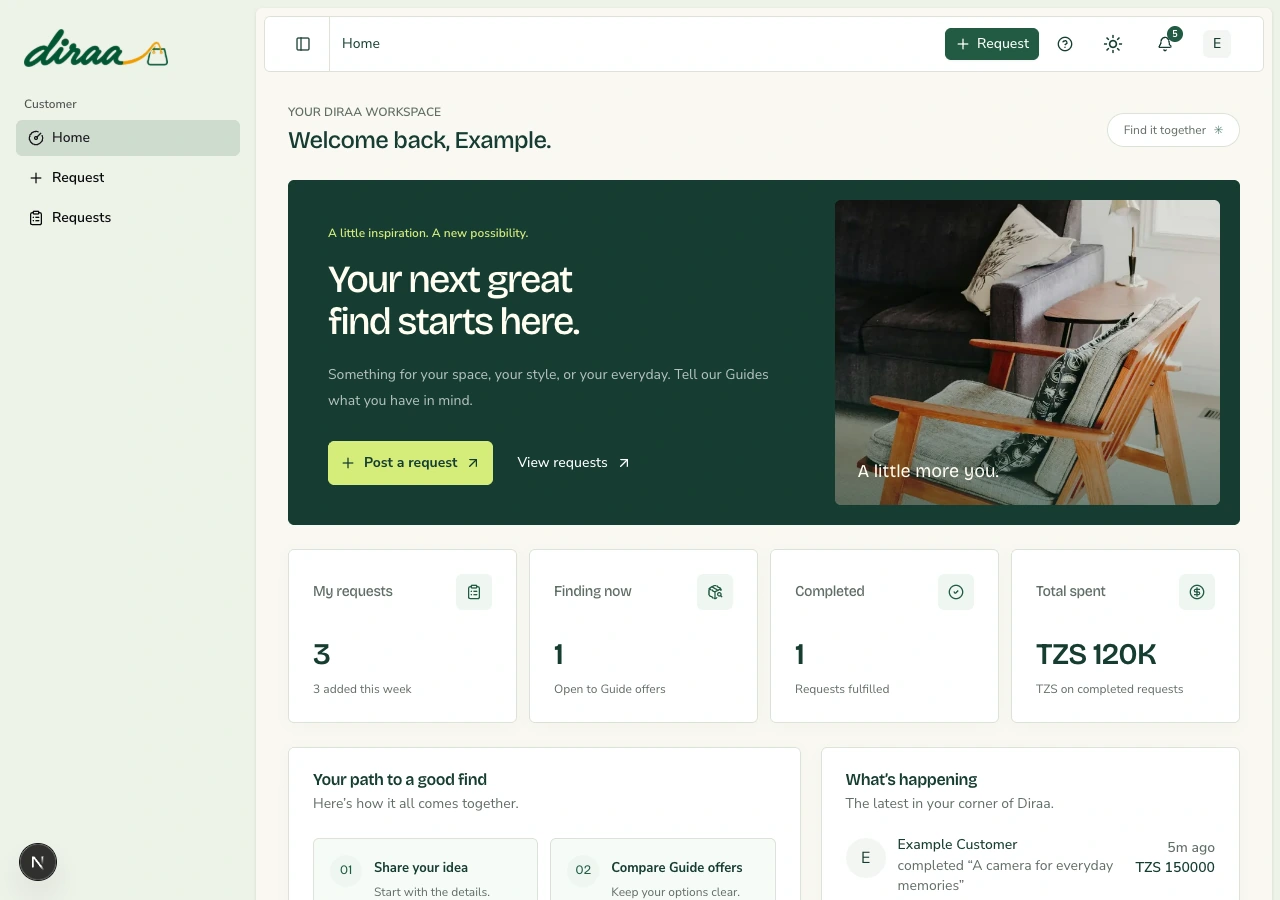
Diraa demonstration screen: Your role and the buying journey
Demonstration records are shown. Names, amounts and business details are examples. Select the image to view it at full size.
Back to contents

Chapter 02

Start with your account

Your account decides which workspace you can use. Keep your sign-in details private.

Create your account

Before you start: Use an email address you can open and a phone number you control.

  1. 1Open diraa.africa and choose the sign-up option.
  2. 2Choose Find something. Enter your personal details and create a password with at least eight characters.
  3. 3Request the email verification code, open your inbox, and enter the code on Diraa. Use Resend code if it expires.
  4. 4Read the terms, accept them if you agree, and finish registration.

What happens next: You have a Customer account.

Keep in mind

  • Never send your password, verification code, card PIN or mobile-money PIN to a Guide or administrator.

Sign in or recover access

Before you start: Have your registered email or phone number ready.

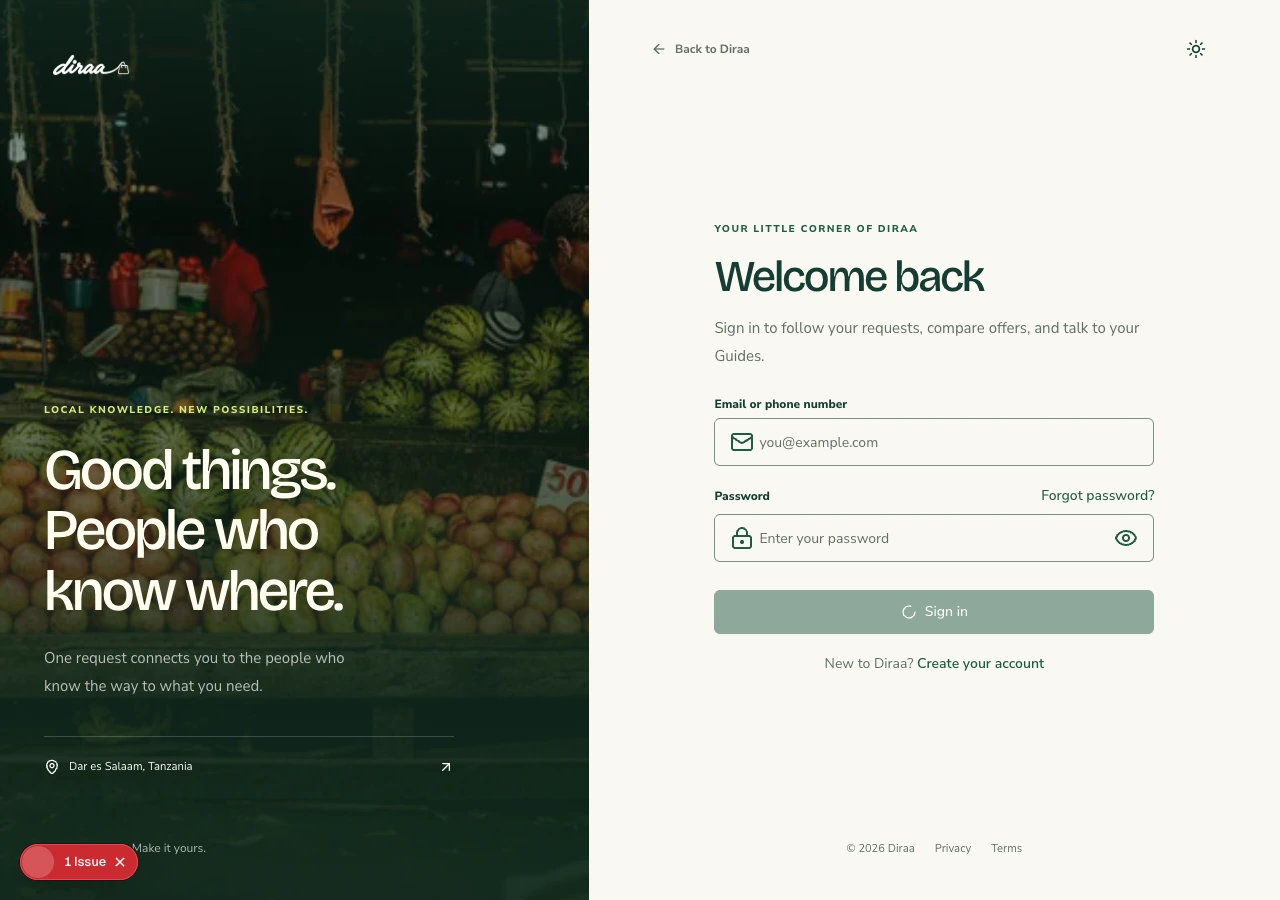
  1. 1Open Sign in. Use Continue with Google, or your registered email or phone and password.
  2. 2If you forgot the password, use the password-reset option and follow the link sent to your email.
  3. 3Open your dashboard. On a phone, use the menu button to see navigation.
  4. 4Use the profile icon in the top bar to open Profile or Log out. Use the sun/moon icon to change the theme.

What happens next: Your workspace shows the options available to your role.

Keep in mind

  • A deactivated account needs help from Diraa support; resetting a password does not reactivate it.

Keep your profile details current

Before you start: Sign in using your own account.

  1. 1Use the top-bar profile icon to open Profile.
  2. 2Open Personal details, choose Edit Profile, and update the permitted personal or contact fields.
  3. 3Choose Save Changes and wait for confirmation. Use Cancel to abandon an edit.
  4. 4Use the profile-photo control to choose an appropriate image, and wait until its upload finishes.

What happens next: Your saved details and photo are available for the permitted account and delivery uses.

Keep in mind

  • Changing profile details does not change your role or complete Guide verification. Keep contact details useful for fulfilment.

Request to become a Guide

Before you start: You are signed in as a Customer.

  1. 1Choose Profile in the sidebar, then open the Become a Guide tab.
  2. 2Choose Request to become a Guide. Read the confirmation and select Yes, send request. No licence number or TIN is needed at this stage.
  3. 3Continue using your Customer account while the Superadmin reviews the request.
  4. 4After approval, open your Guide dashboard and complete identity verification on its KYC page. An approval email follows the review. Approved KYC and an active bundle are required to receive requests.

What happens next: Your account stays a Customer until approved.

Keep in mind

  • If the request is returned, read the remark and send it again when ready.
Diraa demonstration screen: Start with your account
Demonstration records are shown. Names, amounts and business details are examples. Select the image to view it at full size.
Back to contents

Chapter 03

Describe the item you want

A clear request helps Guides quote the same thing instead of guessing.

Complete the Product step

Before you start: Have a product name, category, budget and optional reference photo ready.

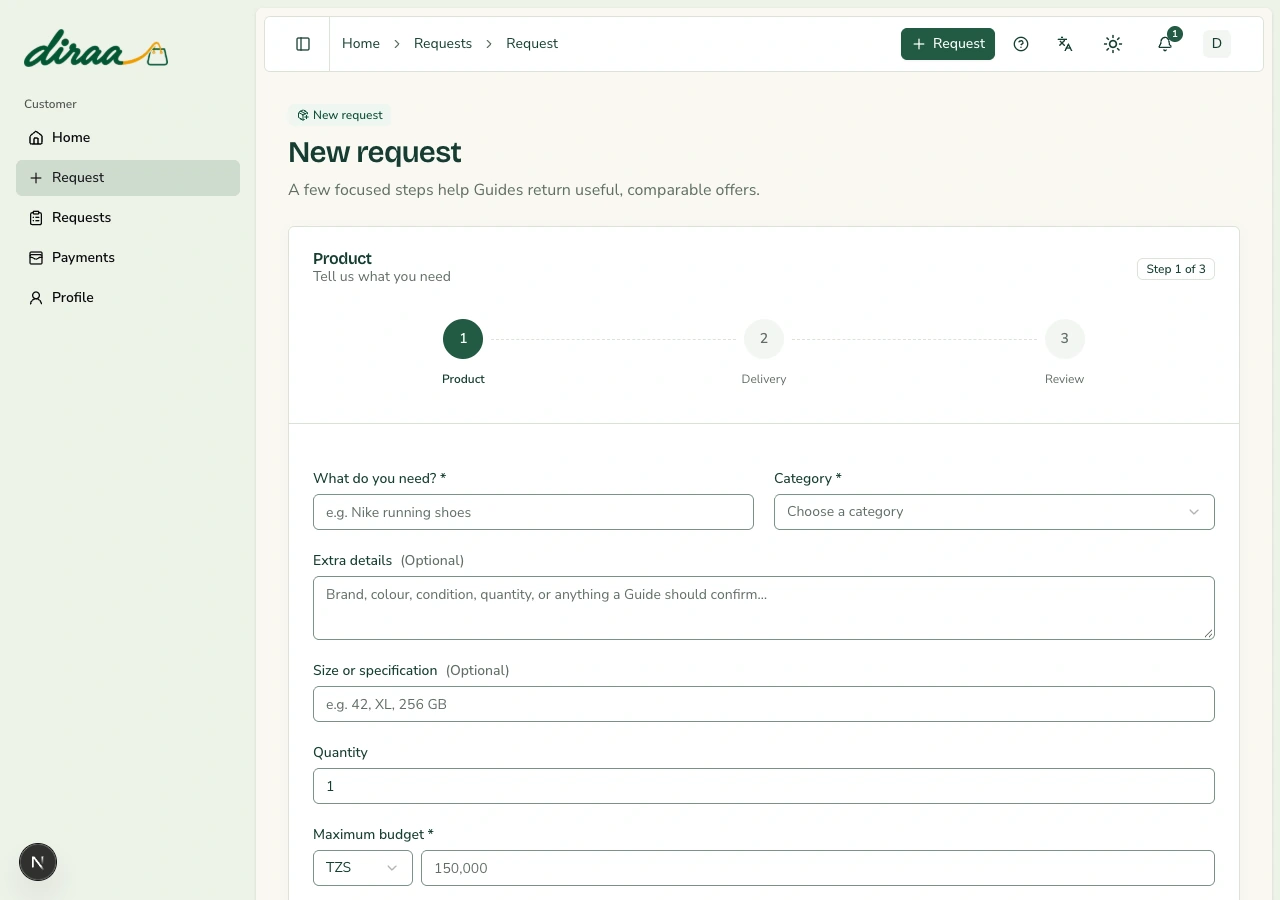
  1. 1Choose Request in the sidebar. The website and Diraa+ both use Product, Delivery and Review.
  2. 2On Product, enter the product name, category, quantity and budget. Add useful size or specifications and optional extra details.
  3. 3Add a reference photo and source link if available. Wait for any upload to finish.
  4. 4Choose Continue to set the delivery point.

What happens next: Diraa moves to the Delivery step.

Keep in mind

  • Website reference photos are optional, but useful. A screenshot or product link is a reference, not proof that the item is in stock.
Diraa demonstration screen: Describe the item you want
Demonstration records are shown. Names, amounts and business details are examples. Select the image to view it at full size.
Back to contents

Chapter 04

Set the delivery point and review

Choose a map pin for the place where you can safely receive the item.

Complete Delivery and Review

Before you start: Confirm your maximum budget and exact receiving point.

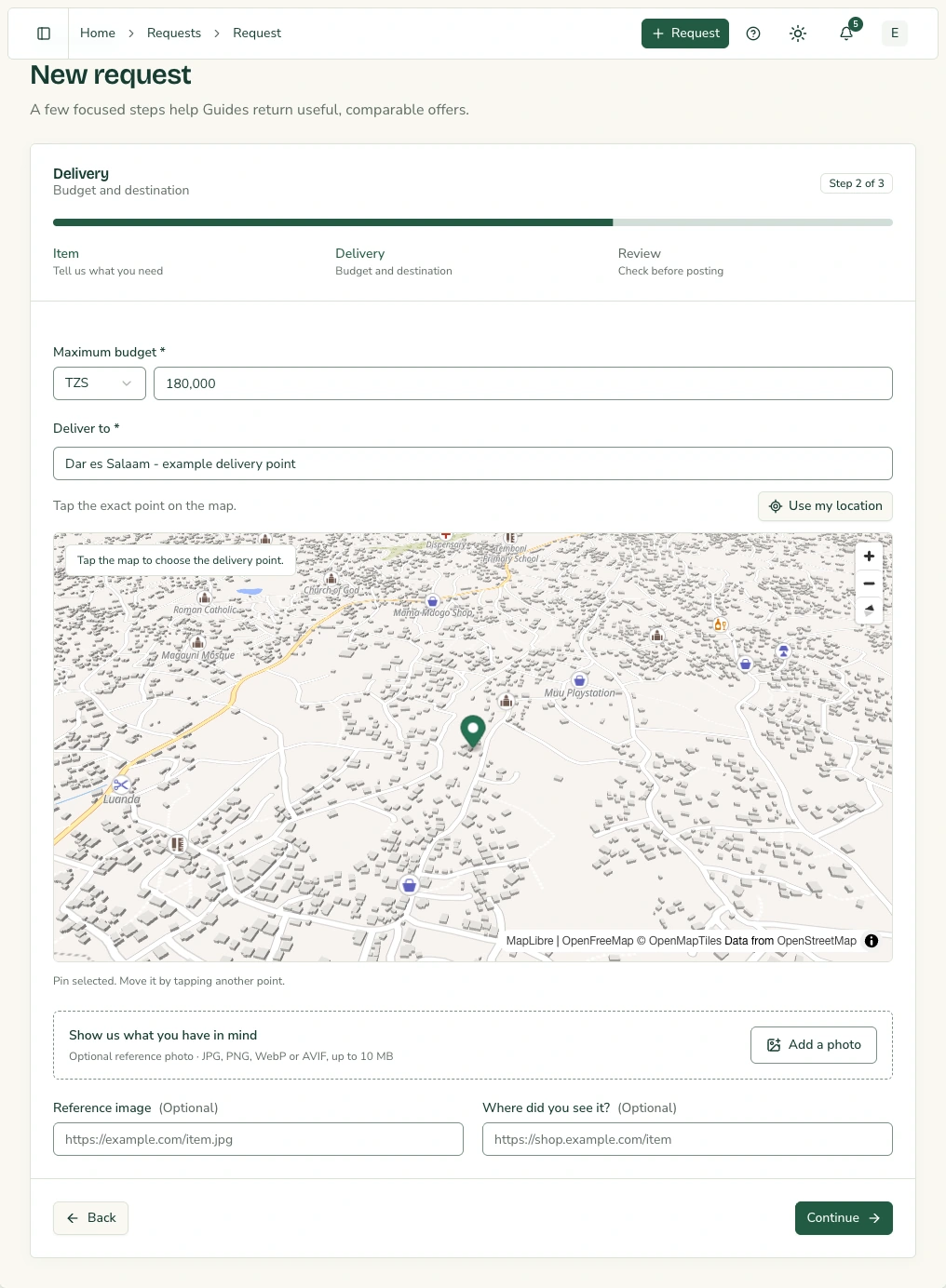
  1. 1On Delivery, enter the neighbourhood or landmark in Deliver to. Move and zoom the map, then tap or click the intended receiving point.
  2. 2Use your current location only when you are at the desired receiving point and agree to the browser permission.
  3. 3Adjust the pin if needed, then choose Continue.
  4. 4Check the Product, Delivery and Review summary, including quantity, budget and photo. Choose Post request once.

What happens next: The request is saved and becomes available for offers.

Keep in mind

  • A place name without a chosen map point is not enough to continue. Prices and currencies must be checked before posting.

Change a saved delivery point

Before you start: Open one of your requests; delivery locations can be updated later.

  1. 1Select Delivery, then Edit delivery point.
  2. 2Choose the new map point and save it.
  3. 3Tell the selected Guide about the change and reconfirm timing or any additional arrangement.

What happens next: The saved point and route preview update, and the change appears in request history.

Keep in mind

  • Changing a pin does not automatically change the agreed price or Guide's delivery promise.
Diraa demonstration screen: Set the budget and delivery point
Demonstration records are shown. Names, amounts and business details are examples. Select the image to view it at full size.
Back to contents

Chapter 05

Create a request from an online image

Diraa+ helps you capture an item while browsing. Availability and updates depend on the Chrome Web Store release.

Capture with Diraa+

Before you start: Install the official Diraa+ release and open its side panel. Only Customer accounts can connect; Guides and administrators must use the website.

  1. 1Choose Continue with Google and confirm Connect on Diraa, or enter your Customer email or phone and password.
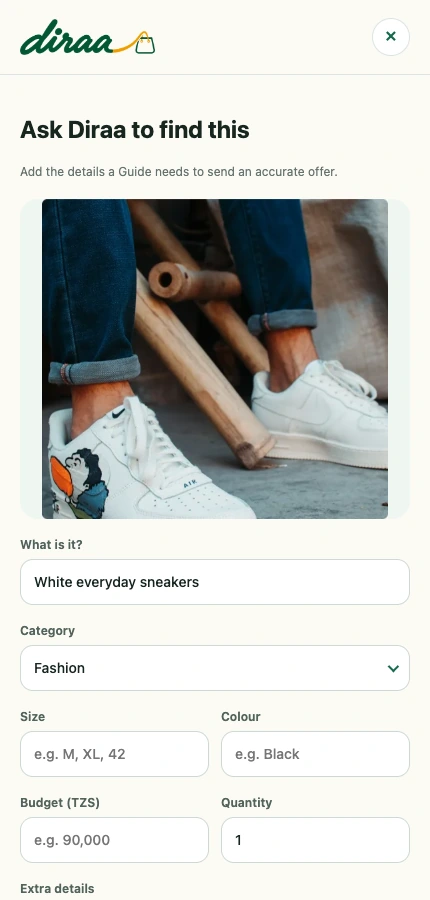
  2. 2Open a shopping page and use the Diraa+ image-capture control on the item.
  3. 3Complete Product details and budget, then Delivery with its map point, and check Review.
  4. 4Choose Send request to Diraa once and wait for confirmation. The captured image must finish uploading before the request can be saved.
  5. 5Open the request on Diraa to compare offers and manage payment and delivery.

What happens next: A request with the captured image and page source is saved.

Keep in mind

  • Diraa+ requests require an attached image. Do not repeatedly send the same request while a photo is uploading. Store review may mean the installed extension is behind the website.
  • Choose Enable notifications in the side panel to open Diraa’s device setup. Sign in to the same Customer account and allow notifications. This is optional and does not change the request process.
Diraa demonstration screen: Create a request from an online image
The Diraa+ composer, shown locally with a sample captured image. No request was submitted. Select the image to view it at full size.
Back to contents

Chapter 06

Compare the offers

Compare the price, promised time and written explanation, not only the lowest number.

Review proposals

Before you start: Open Requests and select the relevant request.

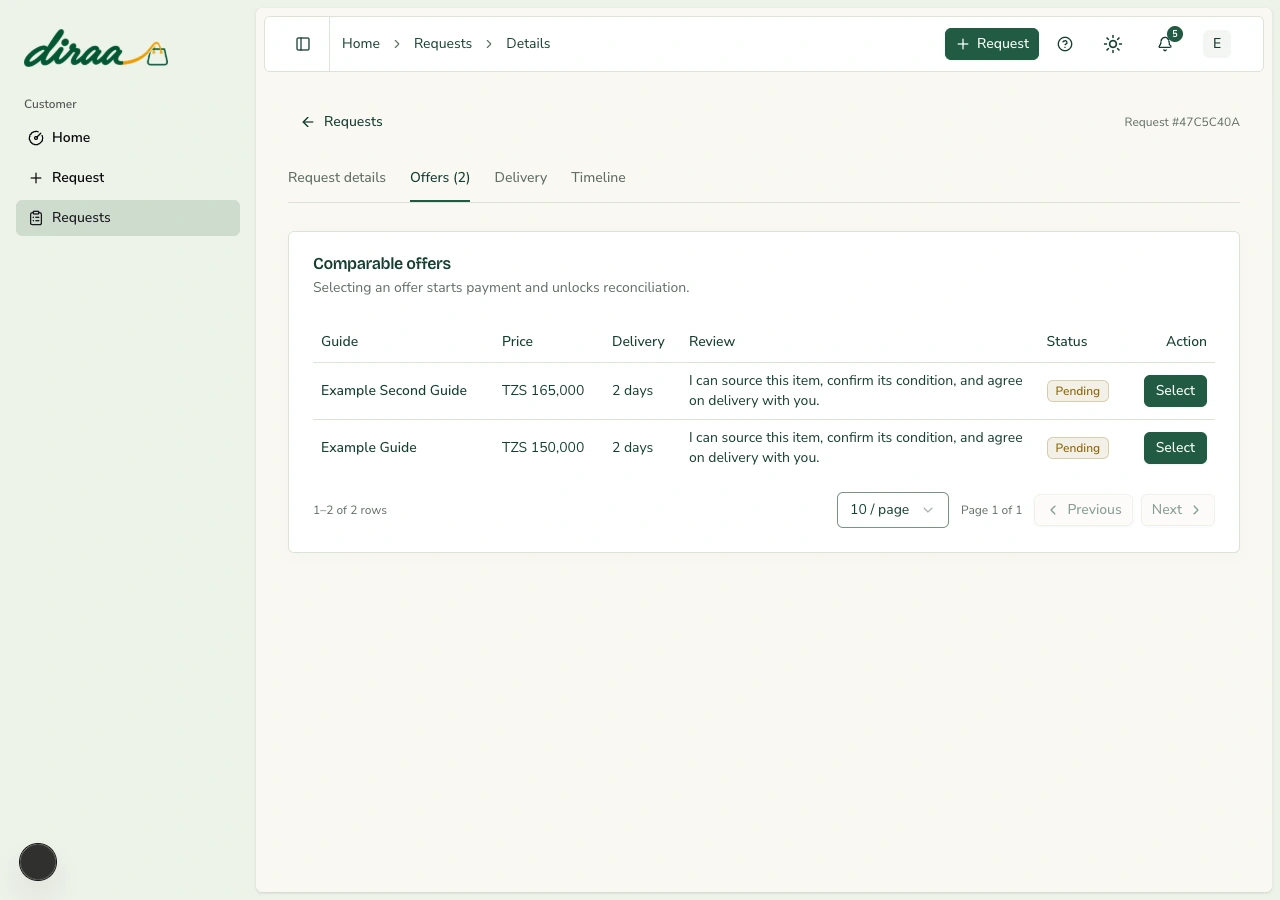
  1. 1Select Offers in the request tabs.
  2. 2Read each Guide's price, currency, delivery time, review or remark, and status.
  3. 3Use the table page controls if there are many offers.
  4. 4Choose Select beside a pending offer when you are ready to use its payment flow.

What happens next: The payment dialog opens for that offer.

Keep in mind

  • Selecting is not a separate reservation. The confirmed payment result determines which offer is accepted. Other offers cannot be changed freely while payment is in progress.
Diraa demonstration screen: Compare the offers
Demonstration records are shown. Names, amounts and business details are examples. Select the image to view it at full size.
Back to contents

Chapter 07

Save billing details and payment preferences

Set up reusable payment details once, then check them each time you pay. Saving a preference does not charge you or authorise automatic payments.

Add a wallet or card checkout preference

Before you start: Sign in to your own account. Have a Tanzanian phone number ready.

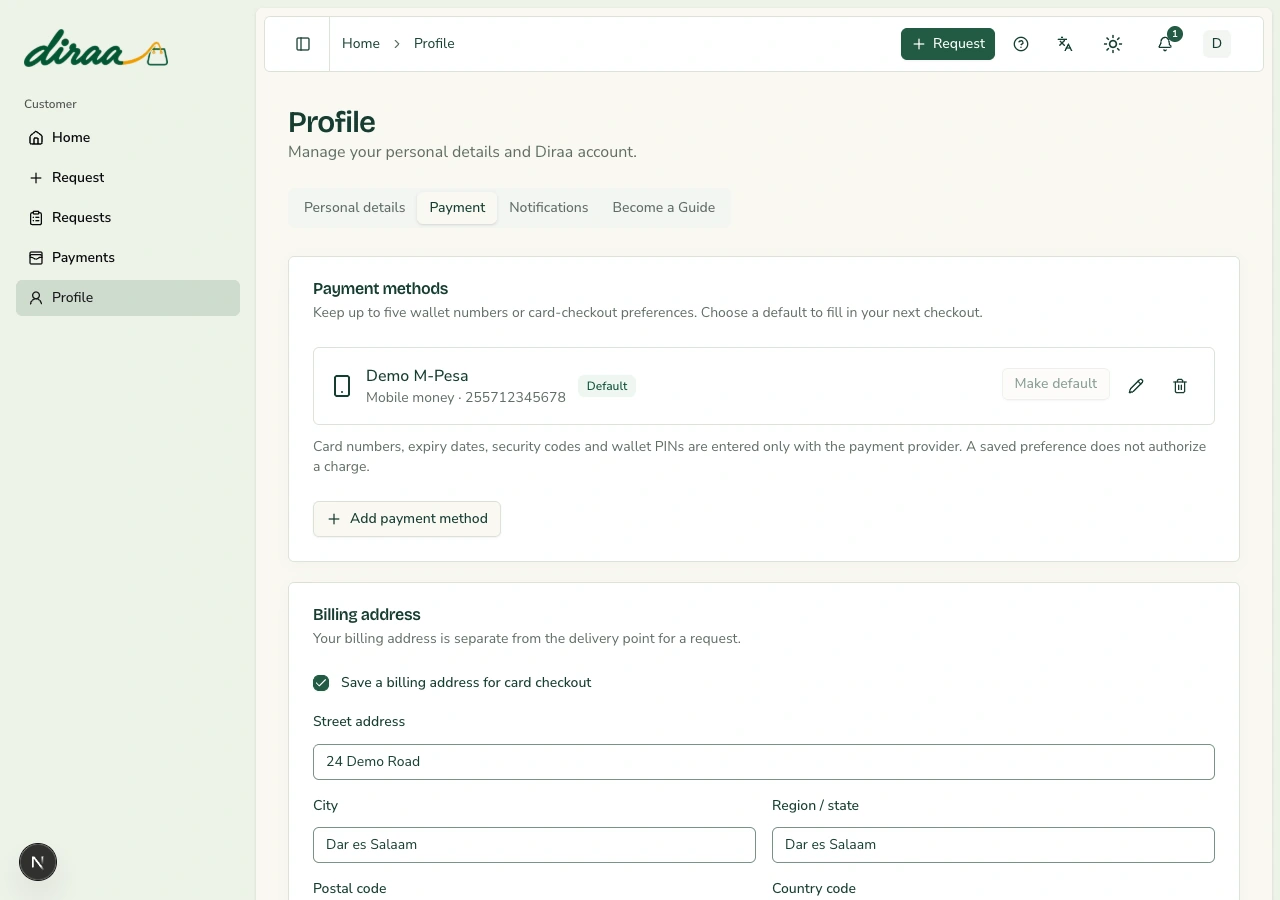
  1. 1Open Profile and choose Payment, or open Payments and choose Payment methods. Both pages manage the same saved details.
  2. 2Choose Add payment method. Choose Mobile money or Card checkout, give it a useful name and enter the phone number.
  3. 3Choose Add to payment settings. Make your preferred method the default if you want checkout to use it first.
  4. 4Choose Save payment settings. You can edit or remove a method later; save those changes too.

What happens next: The next checkout offers your saved methods and uses the default preference.

Keep in mind

  • Card checkout preferences save a label and contact number. Enter card numbers and bank verification only on Snippe’s secure hosted checkout. Diraa does not store your card number, expiry date, CVV or PIN.
  • A saved wallet number still requires approval of the actual payment prompt.

Save and reuse a billing address

Before you start: Use the billing address expected by your card provider. It can differ from the delivery point.

  1. 1On Profile → Payment or Payments → Payment methods, enable Save a billing address for card checkout.
  2. 2Enter the street address, city, region, postal code and two-letter country code; Tanzania is TZ.
  3. 3Choose Save payment settings.
  4. 4At checkout, choose Card and check the filled billing address. Edit it for that payment if needed, then review the total before confirming.

What happens next: Your billing address is private to your account and ready for card checkout.

Keep in mind

  • Changing details during checkout applies to that payment. Return to the saved settings page to change your reusable details.
  • If another tab changes your saved settings at the same time, reload the latest details before saving again.
Profile Payment tab with a saved mobile wallet and reusable billing address
Demonstration settings. The phone and address are examples. Select the image to view it at full size.
Back to contents

Chapter 08

Pay through the secure payment flow

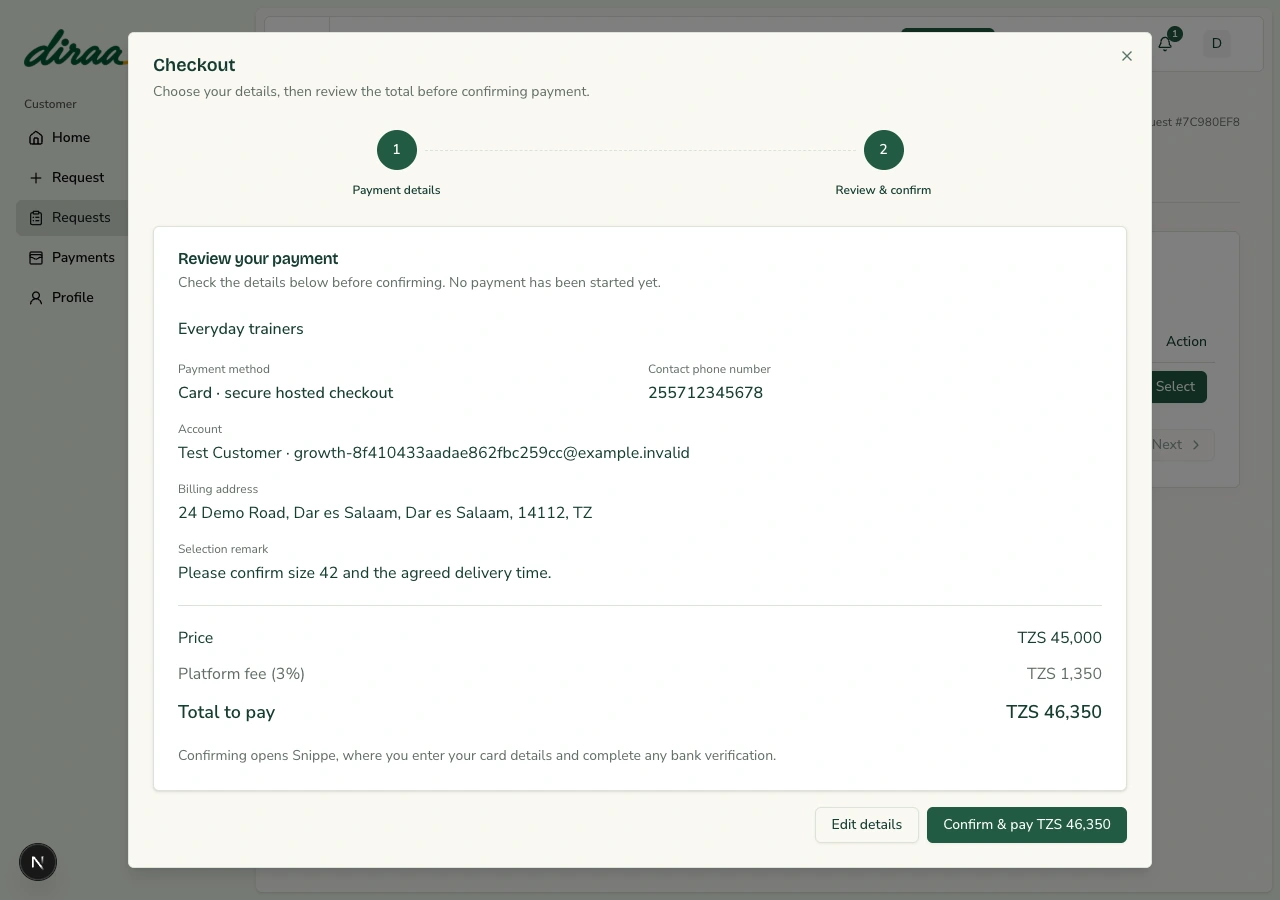
Diraa supports Snippe mobile-money and card collection. Never give another user your wallet PIN or card security details. Checkout adds a 3% platform fee to the offer price and shows the total before you pay. For example, TZS 10,000 plus TZS 300 is TZS 10,300.

Use mobile money

Before you start: Confirm the selected offer amount and have a supported Tanzanian wallet ready.

  1. 1In the payment dialog, choose Mobile money and enter the correct Tanzanian phone number.
  2. 2Choose saved wallet details or check the entered number. Write your selection remark and choose Review payment.
  3. 3Check the request, wallet number, price, 3% platform fee and total. Choose Edit details to make corrections, or Confirm & pay when everything is correct.
  4. 4Approve the prompt on your own phone using the wallet's normal secure process.
  5. 5Return to Diraa and check payment status until a confirmed result appears.

What happens next: A confirmed payment accepts the offer and moves the request into progress.

Keep in mind

  • Pending is not paid. If a prompt or network response is delayed, check status before retrying. Do not make a second unrelated payment to force completion.
  • Snippe checkout currently accepts whole amounts in TZS. Ask Diraa support before agreeing an offer in another currency.

Use a card

Before you start: Have the card, its correct billing details, and a Tanzanian contact phone number ready.

  1. 1Choose Card, check the amount, and enter your Tanzanian contact phone number and the required billing address.
  2. 2Use your saved billing address or enter it for this checkout. Add the selection remark and choose Review payment.
  3. 3Check the request, billing address, contact number, price, 3% fee and total. Choose Edit details to make corrections, or Confirm & pay to open the secure card checkout.
  4. 4Enter card details and finish any bank verification on the hosted secure checkout page.
  5. 5Return to Diraa and check the payment result. If you cancel checkout, check status before starting again.

What happens next: Only the confirmed provider result accepts the offer.

Keep in mind

  • Refunds are handled by authorised operators through the approved payment process. Closing checkout or reporting an issue does not automatically refund a charge.

Track a payment

Before you start: You are signed in to your Customer account.

  1. 1Choose Payments in the sidebar, then open Payment history.
  2. 2Find the request and check its amount, platform fee, total, method and status.
  3. 3Use the request link to open its details. Use the page controls to see more payments.
  4. 4If a payment is pending or under review, check its status before starting another attempt.

What happens next: You have a private list of your request payments.

Keep in mind

  • Historical payments retain their original charged amount; the new fee is not added to old receipts.
Diraa checkout review with payment details, billing address and a separately shown 3% fee
Demonstration checkout: TZS 45,000 plus TZS 1,350 platform fee. No real payment was made. Select the image to view it at full size.
Back to contents

Chapter 09

Arrange delivery and use the route

The customer and selected Guide agree on physical delivery. Diraa records the terms and helps display the route.

Contact the selected Guide

Before you start: The offer has been accepted after confirmed payment.

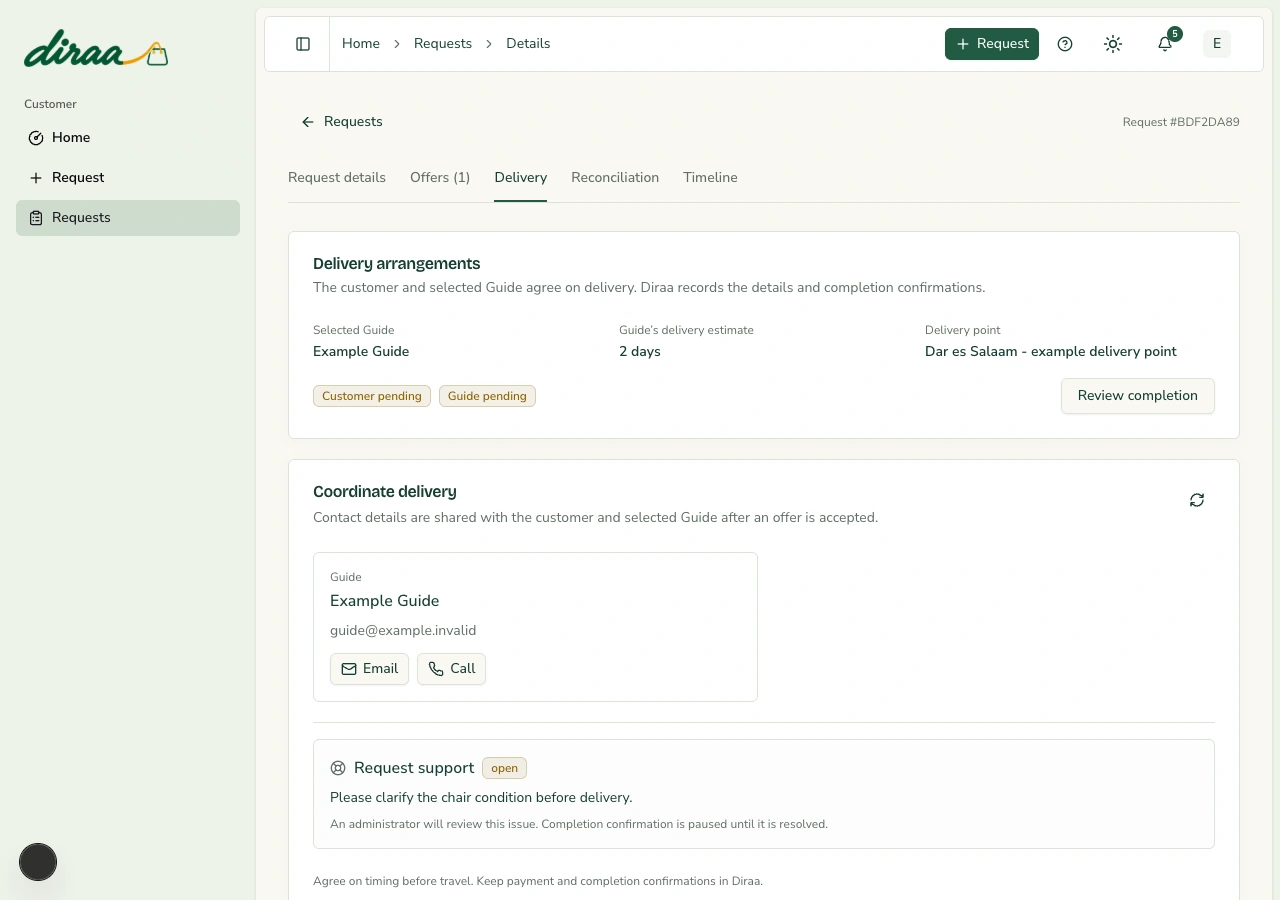
  1. 1Open Delivery and read the selected Guide and delivery estimate.
  2. 2Use the email or call option under Coordinate delivery to agree on the receiving time and item condition.
  3. 3Check the delivery point and route. The start uses the Guide's saved business point where available.
  4. 4If a starting point is missing, use the provided location option; only allow device location if you agree.

What happens next: Both parties have a practical delivery arrangement.

Keep in mind

  • Distance and driving time are approximate and exclude traffic or sourcing time. This is not live courier tracking. Diraa has no separate chat inbox.
Diraa demonstration screen: Arrange delivery and use the route
Demonstration records are shown. Names, amounts and business details are examples. Select the image to view it at full size.
Back to contents

Chapter 10

Inspect the item and confirm completion

Confirm the real outcome only after checking the received item.

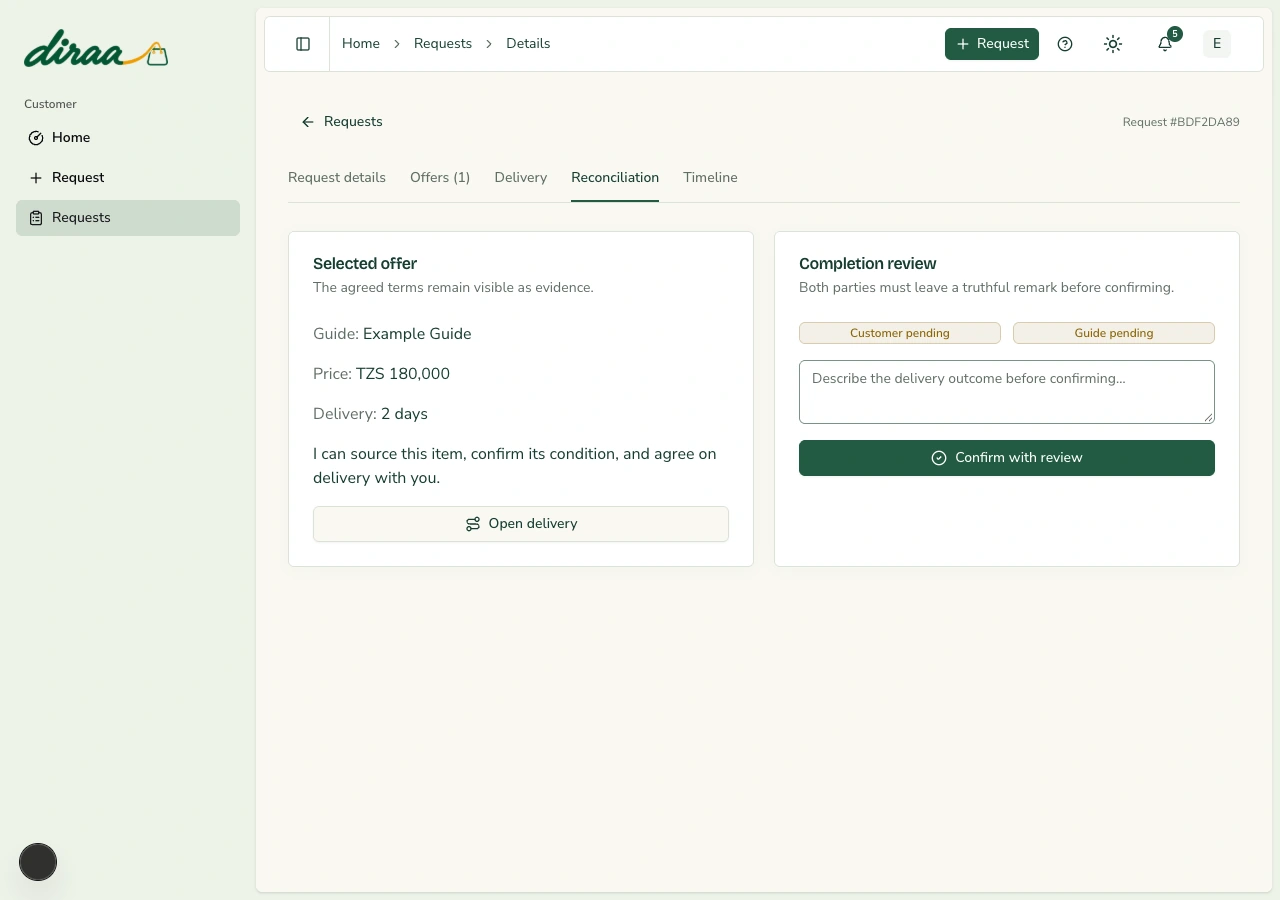
Leave your completion review

Before you start: The accepted offer and delivery outcome are ready for review.

  1. 1Open Reconciliation, or choose Review completion in Delivery.
  2. 2Check the selected offer and the customer/Guide confirmation statuses.
  3. 3Write a truthful remark about the item and delivery, then choose Confirm with review.
  4. 4Wait for the Guide's confirmation if it is still pending. Check the completed status afterward.

What happens next: Both confirmations complete the request once and preserve the written history.

Keep in mind

  • If the item is wrong, missing or damaged, report a problem instead. Open issues pause completion. Completing a request does not prove that a Guide payout has happened.
Diraa demonstration screen: Inspect the item and confirm completion
Demonstration records are shown. Names, amounts and business details are examples. Select the image to view it at full size.
Back to contents

Chapter 11

Report a problem and follow its resolution

Support belongs to the affected request, so the administrator can review the agreed terms and history.

Report a request problem

Before you start: Customers can report their own requests. Guides can report requests where their offer was accepted.

  1. 1Open the request and select Delivery.
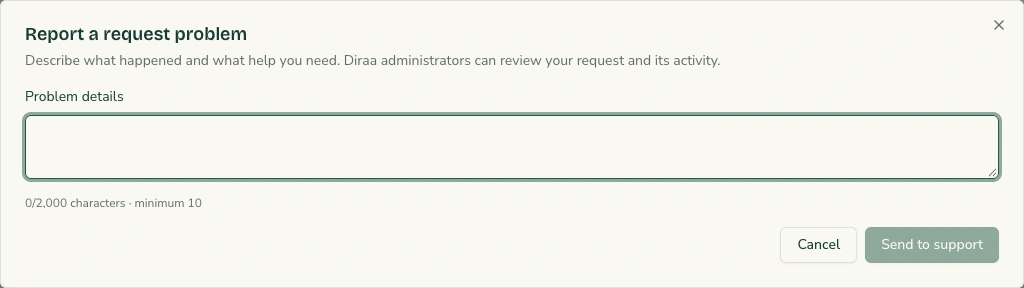
  2. 2Choose Report a problem. Describe what happened, what was agreed, and the help you need in 10 to 2,000 characters.
  3. 3Choose Send to support. The request shows an open issue and administrators can review it.
  4. 4Watch the request and your notifications for the administrator's resolution.

What happens next: An open support case is saved with the request.

Keep in mind

  • An open issue pauses completion and prevents a new payment attempt. Do not confirm delivery simply to close a dispute.

Check the recorded outcome

Before you start: An administrator has reviewed the issue.

  1. 1Return to Delivery and read the resolution text and status.
  2. 2Open Timeline to see the supporting history and remarks.
  3. 3If the problem returns, use Report a problem again after the previous issue has been resolved.

What happens next: You can see the recorded decision and any next action.

Keep in mind

  • A resolution entry does not automatically send a refund. Ask support for the confirmed payment-provider reference when money must be returned.
Diraa demonstration screen: Report a problem and follow its resolution
Demonstration records are shown. Names, amounts and business details are examples. Select the image to view it at full size.
Back to contents

Chapter 12

Stay informed and keep your account current

The bell shows updates inside Diraa. Browser notifications are optional and must be enabled on each device.

Read and clear notifications

Before you start: Sign in to your workspace.

  1. 1Select the bell in the top bar. Open an update to visit its request or account page.
  2. 2Use Mark as read for a single update, or Mark all as read to clear the current unread list.
  3. 3Refresh the page if needed. Read updates should stay read; a genuinely new event may add another unread update.

What happens next: Your notification inbox reflects what you have already read.

Enable notifications on a device

Before you start: Use a supported browser and open Diraa over HTTPS.

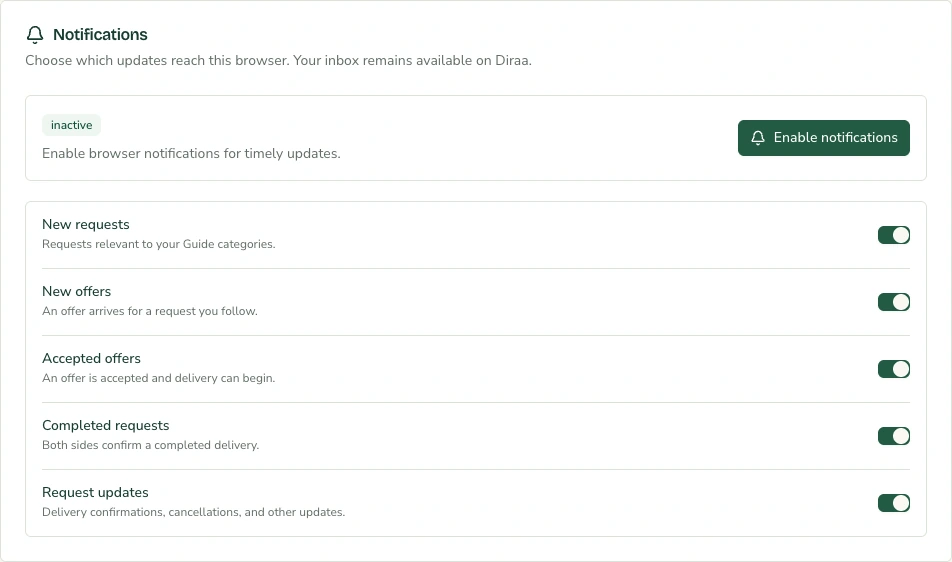
  1. 1Open the profile menu, choose Profile, then open the Notifications tab.
  2. 2Choose Enable notifications and allow the browser permission when prompted.
  3. 3Choose the types of updates you want. Changes are saved as you change the controls.
  4. 4Repeat on every phone or laptop you use. If permission is blocked, allow it in that browser's site settings and try again.

What happens next: The device is registered to receive eligible updates.

Keep in mind

  • Permissions, browser support, device settings and connectivity affect delivery. On an iPhone or iPad, use a supported Home Screen web app where required. Do not rely only on a push alert; check your Diraa inbox.
  • These are device notifications, which can appear when Diraa is in the background or its tab is closed. A completely closed browser, blocked operating-system notifications or an offline device can prevent alerts.
Diraa demonstration screen: Stay informed and keep your account current
Demonstration records are shown. Names, amounts and business details are examples. Select the image to view it at full size.
Back to contents

Chapter 13

Common questions and safe habits

Use the request status and saved history to decide what to do next.

Recover from a delay or error

Before you start: Keep the request page available.

  1. 1For a loading error, choose Try again or refresh after checking connectivity.
  2. 2For a slow photo, wait for its upload stage to finish; use a smaller clear image and retry if an error appears.
  3. 3For delayed payment, check payment status and your provider before trying again.
  4. 4For fulfilment problems, report the issue from Delivery and explain the facts.

What happens next: You avoid duplicate requests, duplicate payments and inaccurate confirmations.

Keep in mind

  • Keep passwords and PINs private. Keep delivery and payment decisions in the saved request history wherever possible.
Back to contents

Glossary & edition notes

Request
A description of something a customer wants a Guide to find.
Guide
A verified sourcing person or business that sends offers and arranges fulfilment.
Offer
A Guide's proposed price, delivery time and explanation.
KYC
Identity verification using a valid document, its number, two photos and residence details.
Delivery point
The place where the customer wants to receive the item.
Reconciliation
The completion-review tab where the customer and Guide confirm what happened.
Settlement
The actual movement of collected money to its intended recipient. A completed request is not proof of a payout.
Audit log
A dated record of an action, who performed it, and its result.

Screenshots use demonstration accounts and records captured from the Diraa interface. They do not show real customer information. Amounts and business details are examples. This manual describes the MVP as of 12 October 2026; later screens and processes may change.

If you cannot sign in or open a request, use Diraa’s published contact number: +255 676 907 776. Have your request ID ready when relevant.

Documentation design references
  • Atlassian how-to article template
  • GitBook documentation structure guidance

Diraa user manuals · English edition · 12 October 2026

HomeContact DiraaPrivacyTerms