Skip to manual
Diraa
ManualsSign in
All role manuals

Diraa · Guide handbook

Guide manual

Find the right item. Keep every promise clear.

Verify your identity, manage request access, send offers and complete deliveries.

English · Edition 1.4 · 12 October 2026

  1. 1Identity verification
  2. 2Sourcing
  3. 3Offers
  4. 4Delivery
Read the stepsDownload PDF

Read every chapter below, or use Contents to jump to a process. The optional PDF has the same explanations and steps.

Contents

  1. 01Your role and the sourcing journey
  2. 02Start with your account
  3. 03Complete identity verification
  4. 04Choose and renew a Guide bundle
  5. 05Set your normal starting point
  6. 06Find a request you can fulfil
  7. 07Send a clear offer
  8. 08Manage proposals and accepted jobs
  9. 09Source and deliver the agreed item
  10. 10Confirm fulfilment honestly
  11. 11Report a problem and follow its resolution
  12. 12Stay informed and keep your account current
  13. 13Use a daily working routine
  14. Glossary & edition notes
Contents · 13 chapters
  1. 01Your role and the sourcing journey
  2. 02Start with your account
  3. 03Complete identity verification
  4. 04Choose and renew a Guide bundle
  5. 05Set your normal starting point
  6. 06Find a request you can fulfil
  7. 07Send a clear offer
  8. 08Manage proposals and accepted jobs
  9. 09Source and deliver the agreed item
  10. 10Confirm fulfilment honestly
  11. 11Report a problem and follow its resolution
  12. 12Stay informed and keep your account current
  13. 13Use a daily working routine
  14. Glossary & edition notes

Chapter 01

Your role and the sourcing journey

A Guide finds suitable items, explains the offer and arranges fulfilment. New opportunities require approved KYC and an active paid bundle.

Understand your responsibilities

Before you start: Know which products you can source and where you can serve customers.

  1. 1Request Guide access from your Customer Profile, wait for approval, complete KYC and purchase a bundle. Direct Guide sign-up still requires KYC and payment.
  2. 2Discover requests, check the specifications, and send a realistic offer.
  3. 3After payment is confirmed, coordinate sourcing and delivery with the customer in Diraa Messages. Personal contact details stay private.
  4. 4Deliver the agreed item, leave your completion review, and follow the agreed settlement process.

What happens next: You can manage the job from one request and My Offers.

Keep in mind

  • Diraa does not provide a courier fleet or an automatic Guide payout balance. Accepted work and completed value do not prove money was paid to you.
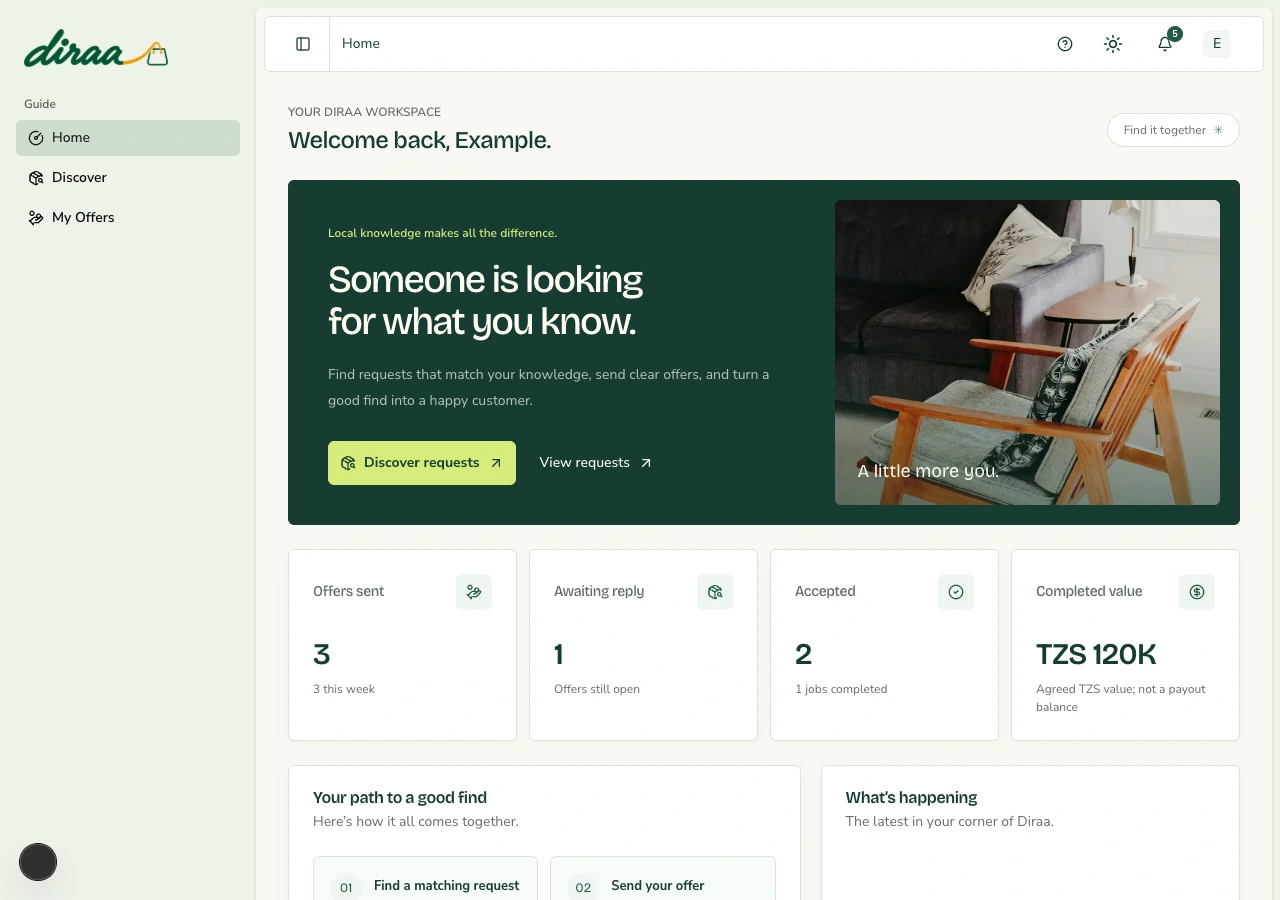
Diraa demonstration screen: Your role and the sourcing journey
Demonstration records are shown. Names, amounts and business details are examples. Select the image to view it at full size.
Back to contents

Chapter 02

Start with your account

Your account decides which workspace you can use. Keep your sign-in details private.

Create your account

Before you start: Use an email address you can open and a phone number you control.

  1. 1Open diraa.africa and choose the sign-up option.
  2. 2Choose Become a Guide. Enter your personal details and create a password with at least eight characters.
  3. 3Request the email verification code, open your inbox, and enter the code on Diraa. Use Resend code if it expires.
  4. 4Read the terms, accept them if you agree, and finish registration.

What happens next: You have a Guide account. KYC approval and an active paid bundle are required before discovering requests.

Keep in mind

  • Never send your password, verification code, card PIN or mobile-money PIN to a Guide or administrator.

Sign in or recover access

Before you start: Have your registered email or phone number ready.

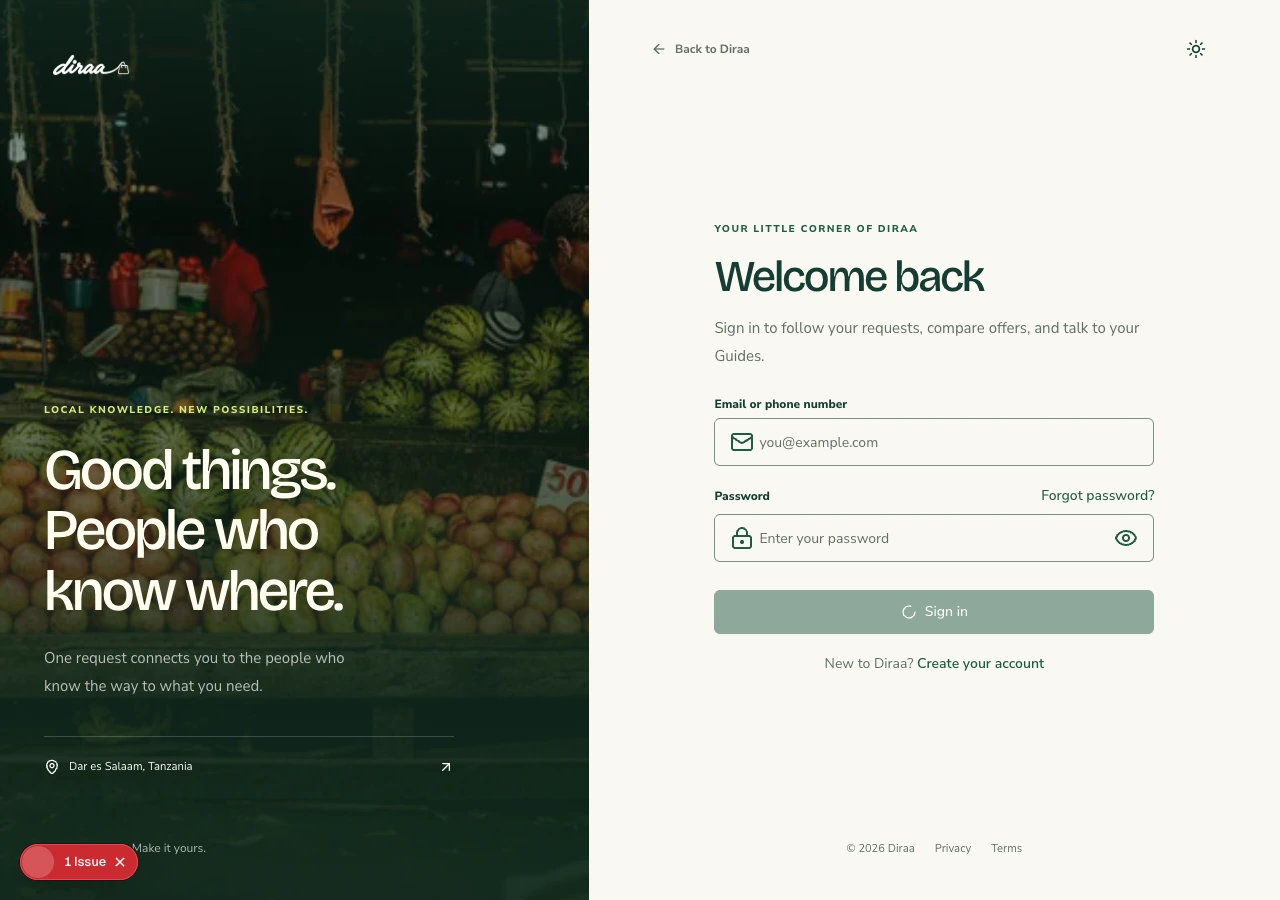
  1. 1Open Sign in. Use Continue with Google, or your registered email or phone and password.
  2. 2If you forgot the password, use the password-reset option and follow the link sent to your email.
  3. 3Open your dashboard. On a phone, use the menu button to see navigation.
  4. 4Use the profile icon in the top bar to open Profile or Log out. Use the sun/moon icon to change the theme.

What happens next: Your workspace shows the options available to your role.

Keep in mind

  • A deactivated account needs help from Diraa support; resetting a password does not reactivate it.

Keep your profile details current

Before you start: Sign in using your own account.

  1. 1Use the top-bar profile icon to open Profile.
  2. 2Open Personal details, choose Edit Profile, and update the permitted personal or contact fields.
  3. 3Choose Save Changes and wait for confirmation. Use Cancel to abandon an edit.
  4. 4Use the profile-photo control to choose an appropriate image, and wait until its upload finishes.

What happens next: Your saved details and photo are available for the permitted account and delivery uses.

Keep in mind

  • Changing profile details does not change your role or complete Guide verification. Keep contact details useful for fulfilment.
Diraa demonstration screen: Start with your account
Demonstration records are shown. Names, amounts and business details are examples. Select the image to view it at full size.
Back to contents

Chapter 03

Complete identity verification

KYC checks your identity. Complete it on the KYC page inside your Guide dashboard. Your dashboard remains available while the review is pending.

Submit your identity documents

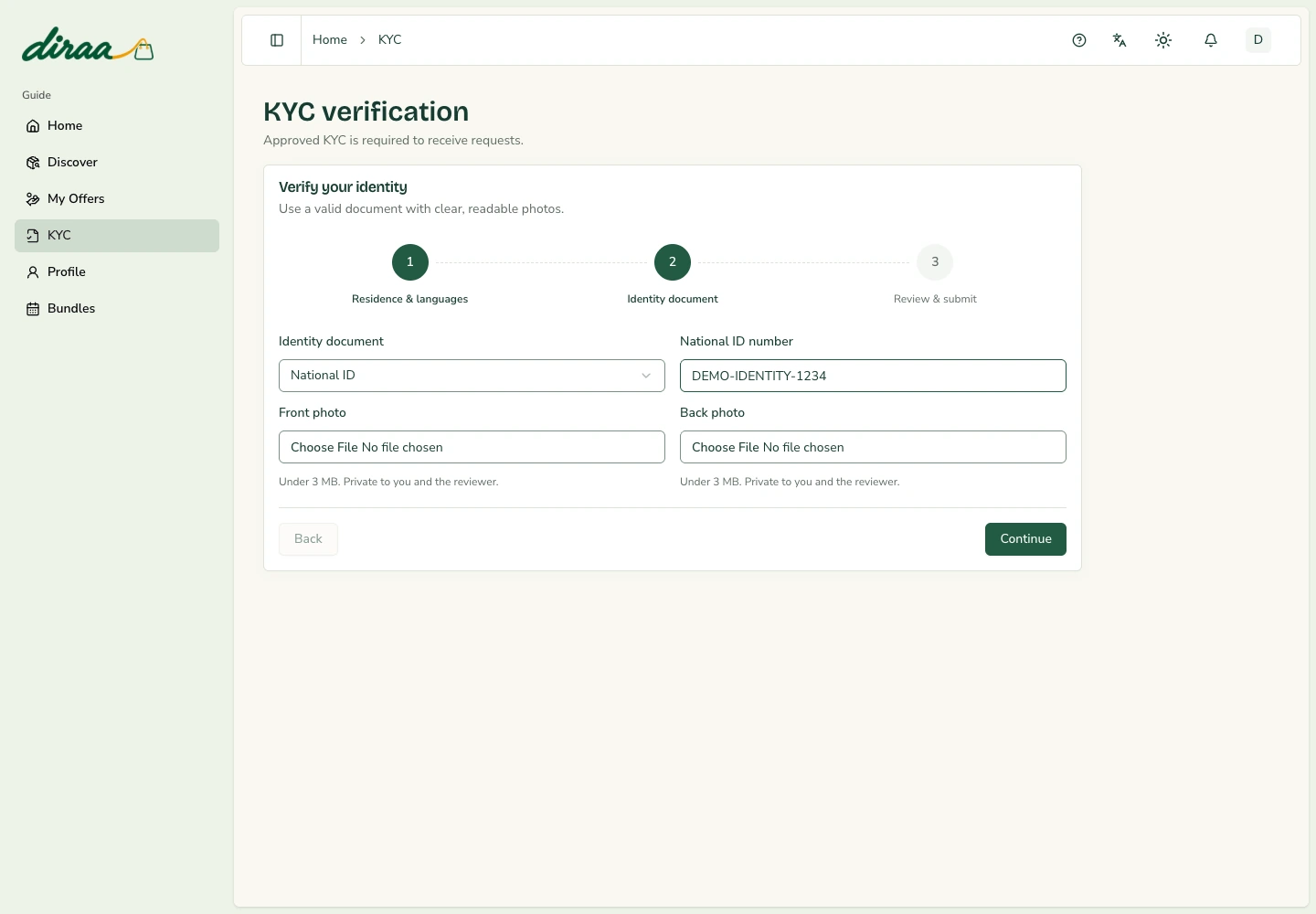
Before you start: Have a National ID, Passport or Driver’s Licence, the identity number, and clear photos of both sides ready.

  1. 1Open KYC from the Guide dashboard sidebar.
  2. 2Choose your country of residence, enter your spoken languages, and select sourcing categories. A trading name is optional.
  3. 3Choose your identity document and enter its matching number. Upload clear front and back photos under 3 MB each. For a passport, use the identity page and cover.
  4. 4Review the details and choose Submit KYC. Your documents are private to you and the Superadmin reviewer.
  5. 5Continue using your dashboard while review is pending. You will receive an email when your KYC is approved or returned.

What happens next: Your submission is saved for administrator review.

Keep in mind

  • Approved KYC and an active bundle are access rules for receiving new requests. Buying a bundle is not a KYC step.

Correct a returned submission

Before you start: An administrator has requested changes.

  1. 1Open KYC and read the reviewer’s reason.
  2. 2Correct your details and upload both document photos again. Review and resubmit.
  3. 3Wait for the approval email. An active bundle is also required to discover new requests.

What happens next: The corrected submission returns to review.

Keep in mind

  • Submit genuine, readable identity documents. Approval requires a Superadmin review.
Guide identity verification inside the Diraa dashboard
Demonstration identity form. No real identity documents are shown. Select the image to view it at full size.
Back to contents

Chapter 04

Choose and renew a Guide bundle

Guide access is prepaid. KYC approval alone does not unlock new requests. Your bundle must still be active.

Pay for a bundle

Before you start: Your KYC is verified.

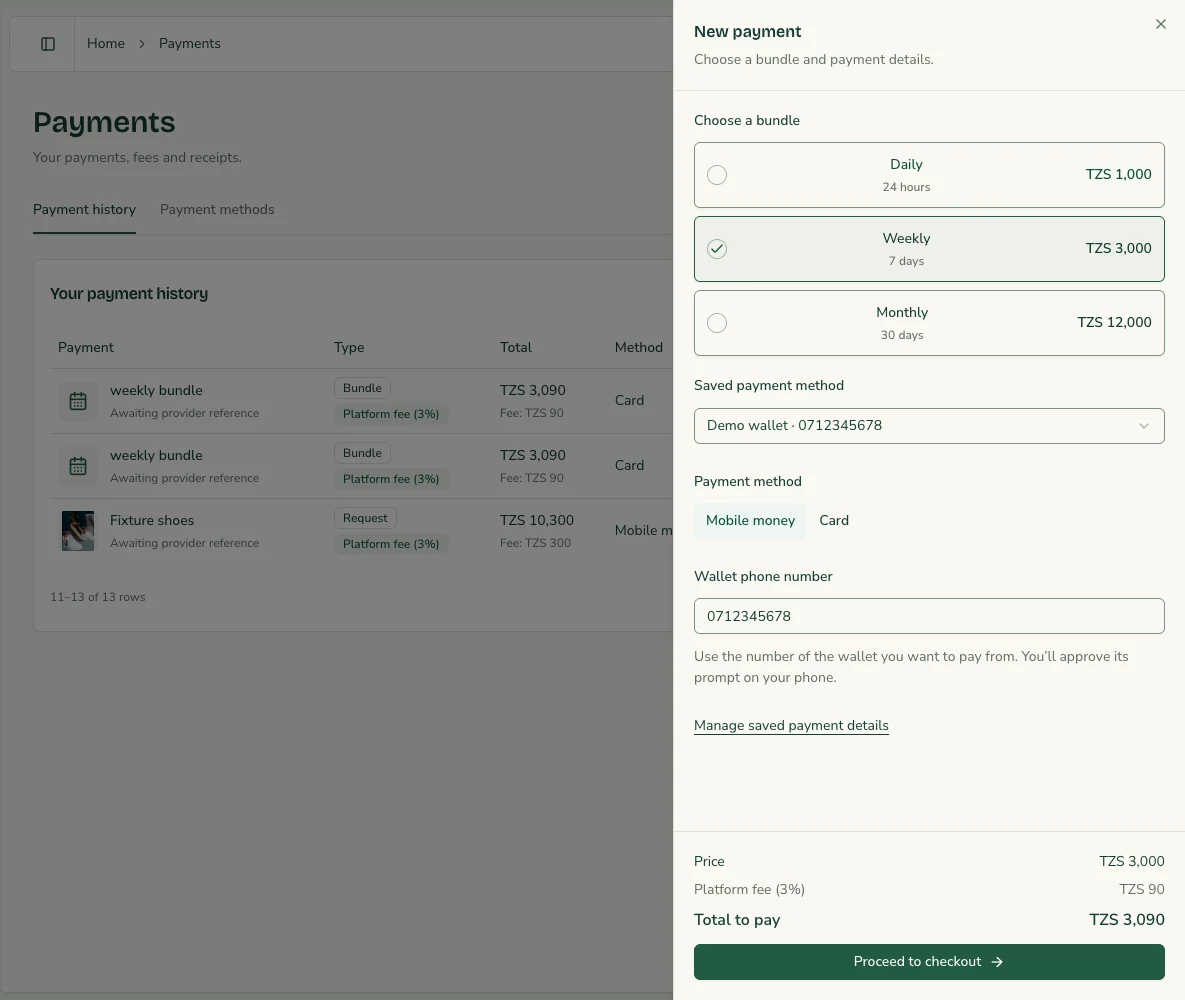
  1. 1Open Payments in the sidebar, then choose New payment. View bundles on Discover opens the same drawer.
  2. 2Choose Daily (TZS 1,000), Weekly (TZS 3,000) or Monthly (TZS 12,000). The 3% fee makes checkout totals TZS 1,030, TZS 3,090 and TZS 12,360.
  3. 3Choose mobile money or card. Saved preferences and billing details from Profile → Payment can fill the form; check or edit them.
  4. 4The drawer shows the price, 3% fee and total. Choose Proceed to checkout, check the summary, then choose Confirm & pay. Use Edit details for corrections.
  5. 5Approve the wallet prompt on your phone, or enter your card details on the secure hosted checkout and complete the provider process.
  6. 6Check the result. Access starts only after the provider confirms payment. Read the expiry date on Payments.

What happens next: You can discover requests and send offers while the bundle is active.

Keep in mind

  • Daily lasts 24 hours, weekly 7 days and monthly 30 days. Buying again before expiry extends the remaining time. These are prepaid bundles; Diraa does not automatically charge a renewal.
  • When a bundle expires, renew to receive new opportunities. You can still manage accepted deliveries.
  • If interrupted, use Check payment or Retry the same payment. Diraa reuses the recorded attempt. After a confirmed failure, Retry payment opens a fresh drawer and summary. Payments lists bundle and request receipts with their fees. Contact support for payments under review instead of paying again.
Diraa New payment drawer with bundle choices, saved wallet and fee summary
Choose a bundle and payment method, then review the total including the 3% fee before checkout. Demonstration only; no real charge. Select the image to view it at full size.
Back to contents

Chapter 05

Set your normal starting point

Saving your business point makes route previews easier for customers and avoids repeatedly asking for device location.

Save or update the business location

Before you start: Use the place where you normally start sourcing or delivery.

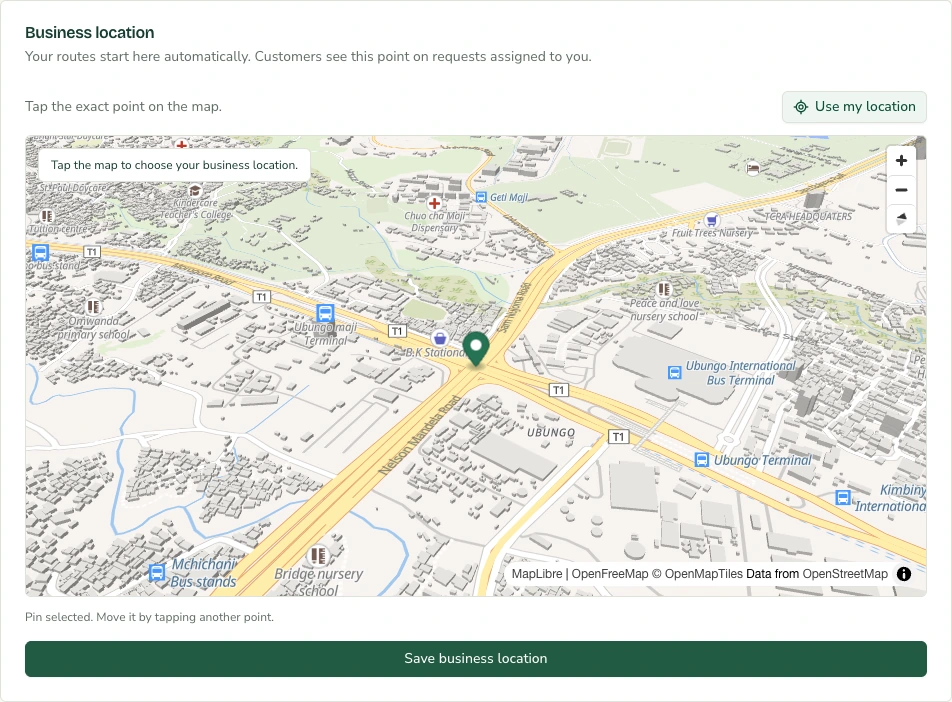
  1. 1Open the profile menu, choose Profile, then open Business and find Business location.
  2. 2Choose Set business location, or Change location if a point already exists.
  3. 3Choose the correct point on the map and select Save business location.
  4. 4Update it when the business moves, and reconfirm delivery arrangements on active requests.

What happens next: Assigned requests can use your saved point as the route start.

Keep in mind

  • Customers see this business point on requests assigned to you. Without a saved point, the route may need device location or a manually chosen starting point.
Diraa demonstration screen: Set your normal starting point
Demonstration records are shown. Names, amounts and business details are examples. Select the image to view it at full size.
Back to contents

Chapter 06

Find a request you can fulfil

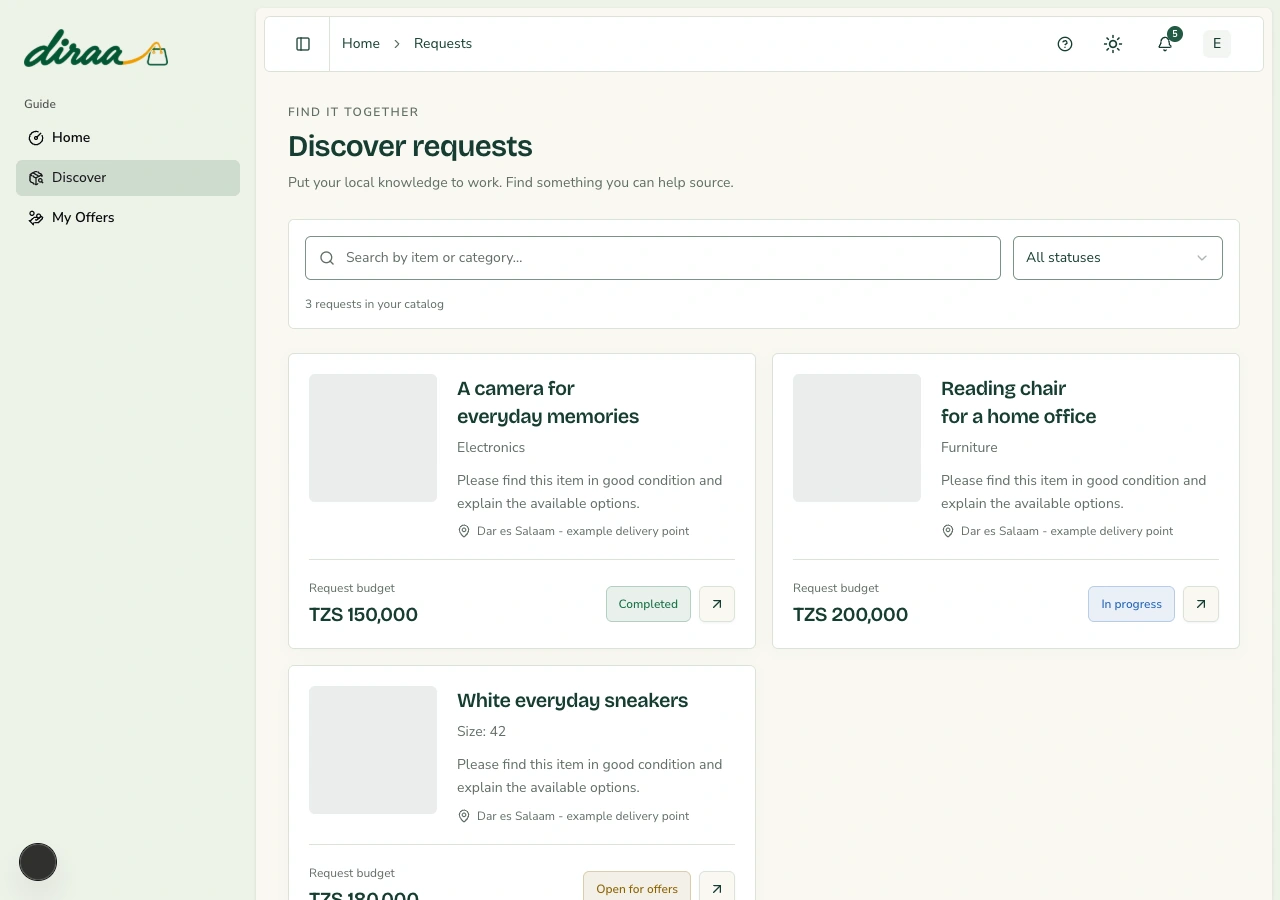
Choose requests that match your product knowledge, budget and practical delivery area.

Review an opportunity

Before you start: Your Guide account has approved KYC and an active paid bundle.

  1. 1Choose Discover in the sidebar and use the available search or filters.
  2. 2Open a request and read its description, photographs, budget, category and specifications.
  3. 3Check the delivery destination and consider sourcing and travel time.
  4. 4Open Offers only when you can propose the requested item and an achievable time.

What happens next: You have enough information to send a useful proposal.

Keep in mind

  • Do not offer on your own request. Reference photos are not proof of stock or product condition. A category helps classification; it does not guarantee that a request is suitable for you.
Diraa demonstration screen: Find a request you can fulfil
Demonstration records are shown. Names, amounts and business details are examples. Select the image to view it at full size.
Back to contents

Chapter 07

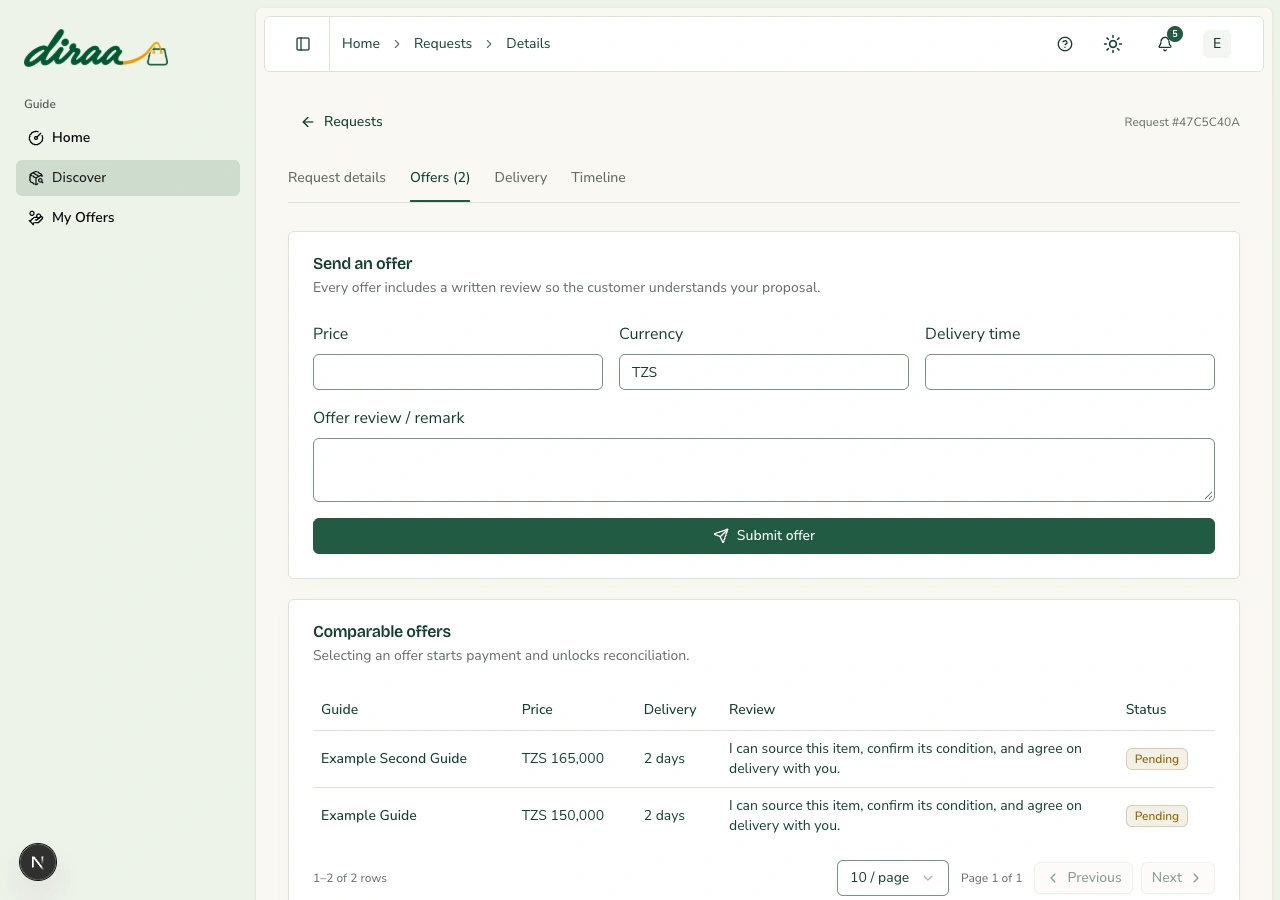
Send a clear offer

The customer compares your price, time and explanation against other proposals.

Submit the proposal

Before you start: The request is open for offers.

  1. 1On the request, choose Offers and find Send an offer.
  2. 2Enter your price, currency and delivery time. TZS is required for the supported Snippe checkout.
  3. 3Write an Offer review / remark explaining the item, condition, availability and any important delivery detail.
  4. 4Choose Submit offer and wait for confirmation.

What happens next: The proposal appears in your My Offers list.

Keep in mind

  • Do not promise stock, conditions or delivery dates you have not checked. Offers cannot be changed while payment is in progress. Submitting again for the same open request updates your existing proposal where allowed.
  • Snippe checkout currently accepts whole amounts in TZS. Clarify currency with the customer and Diraa support before agreeing work in another currency.
Diraa demonstration screen: Send a clear offer
Demonstration records are shown. Names, amounts and business details are examples. Select the image to view it at full size.
Back to contents

Chapter 08

Manage proposals and accepted jobs

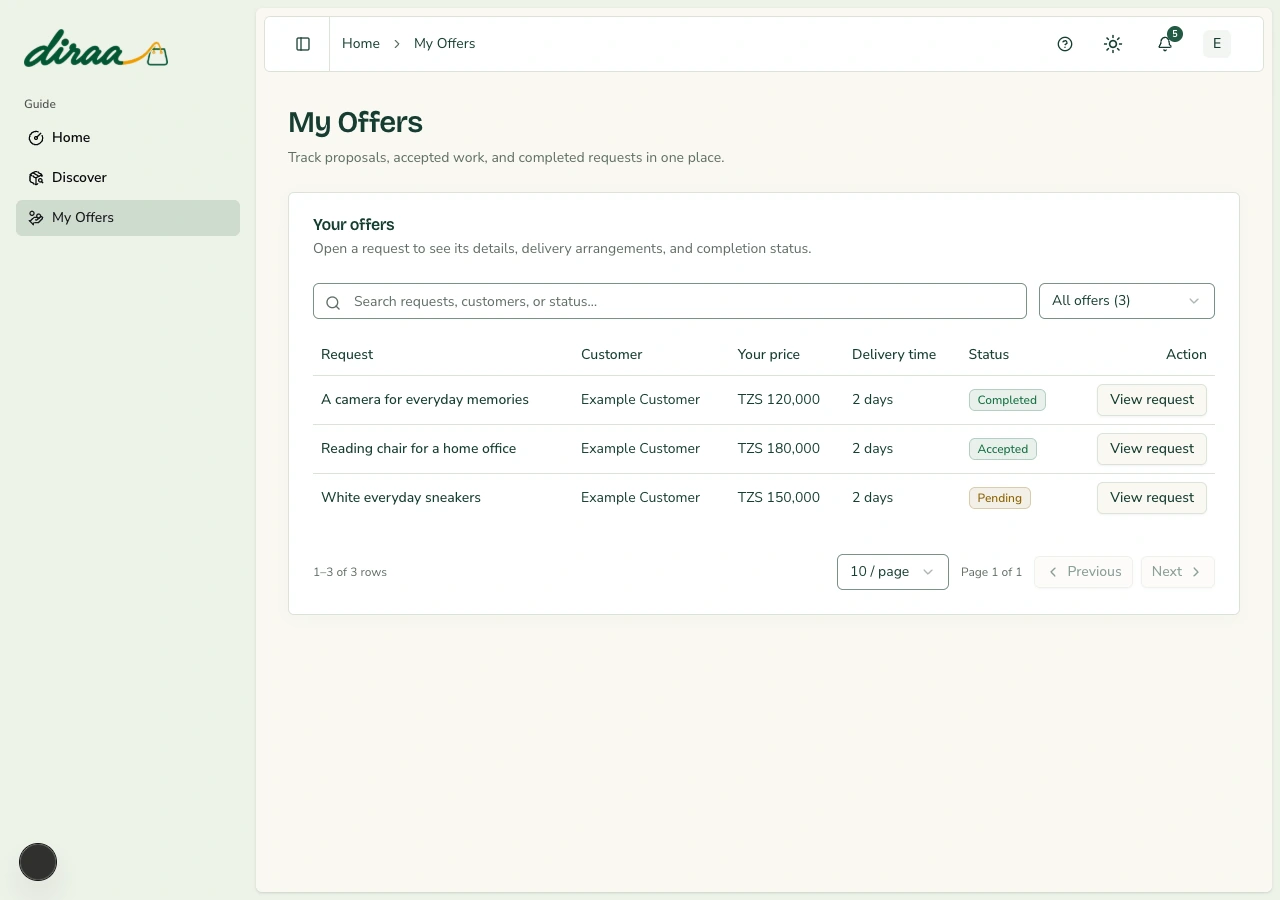
My Offers replaces a separate Work page. It is the main list for your sourcing work.

Find the right work status

Before you start: Open My Offers in the sidebar.

  1. 1Choose Pending to follow proposals awaiting a customer decision.
  2. 2Choose Accepted to see selected jobs that still need fulfilment, or Completed for finished jobs.
  3. 3Use the search box and page controls to find an item or customer.
  4. 4Choose View request to open the associated offer or Delivery tab.

What happens next: You can reach each active or completed job from one list.

Keep in mind

  • Declined lists offers that were not selected. A rejected proposal does not mean your account is blocked.

Check whether a customer selected you

Before you start: The customer has used the payment flow.

  1. 1Open the relevant request and check the offer status.
  2. 2Treat accepted as the confirmed selection signal; a customer saying they started payment is not enough.
  3. 3Use Delivery to check the agreed price and timing and the contact options.

What happens next: You know which requests are assigned to you.

Keep in mind

  • Do not mark delivery complete merely because payment was collected. Completed request value is not a payout balance.
Diraa demonstration screen: Manage proposals and accepted jobs
Demonstration records are shown. Names, amounts and business details are examples. Select the image to view it at full size.
Back to contents

Chapter 09

Source and deliver the agreed item

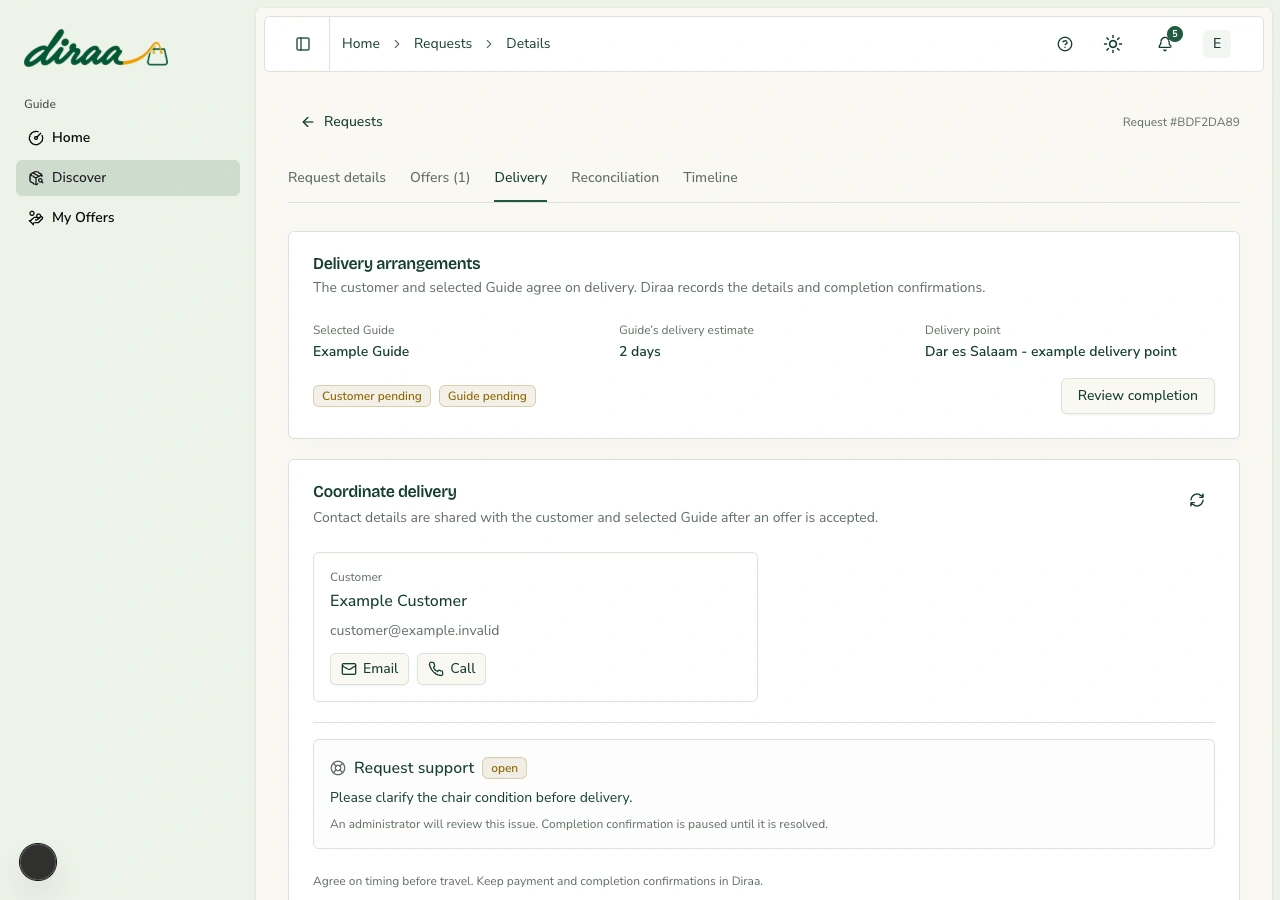
The selected Guide and customer organise physical transport and agree on the receiving time.

Coordinate fulfilment

Before you start: Your offer is accepted and the request is assigned to you.

  1. 1Open Delivery and read the customer's confirmed destination and your agreed time.
  2. 2Use the email or call option to confirm item details, receiving time and delivery arrangements.
  3. 3Source the agreed item and check its condition before travelling.
  4. 4Use the route preview for approximate distance and driving time; reconfirm any changed delivery point with the customer.

What happens next: You have a practical plan to deliver the agreed item.

Keep in mind

  • The map does not track a live courier. Driving estimates exclude sourcing time and traffic. Do not request passwords, wallet PINs or card information from customers.
Diraa demonstration screen: Source and deliver the agreed item
Demonstration records are shown. Names, amounts and business details are examples. Select the image to view it at full size.
Back to contents

Chapter 10

Confirm fulfilment honestly

The customer and selected Guide each leave a completion review. Both confirmations are needed.

Confirm your part of the delivery

Before you start: The item was delivered, and you can describe the real outcome.

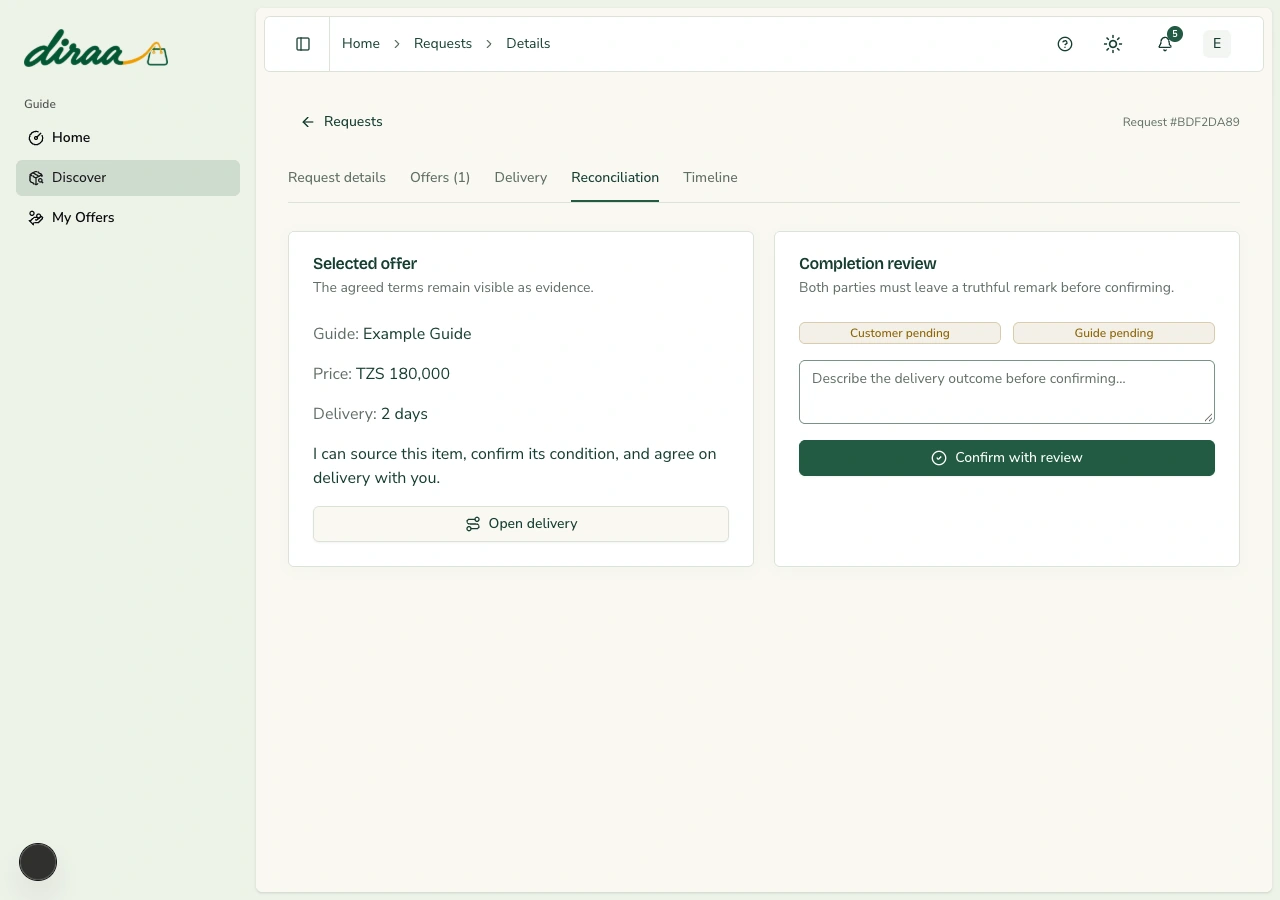
  1. 1Open Reconciliation or choose Review completion from Delivery.
  2. 2Check the accepted terms and customer/Guide confirmation statuses.
  3. 3Write a clear remark about what was delivered and choose Confirm with review.
  4. 4Wait for the other party if their confirmation is pending, then check the Completed filter in My Offers.

What happens next: Both confirmations complete the request once.

Keep in mind

  • If an issue is open, completion remains paused until an administrator resolves it. Do not pressure a customer to confirm before inspecting the item.

Follow up on your actual payment

Before you start: The fulfilment outcome and any dispute are clear.

  1. 1Check the agreed offer value and request ID.
  2. 2Follow the settlement arrangement approved by Diraa's authorised operator.
  3. 3Ask for the actual transfer reference and verify receipt in the payment account you agreed to use.
  4. 4Contact support if the recorded request value and the actual payment do not match.

What happens next: You can distinguish completed work from money actually received.

Keep in mind

  • There is no automatic payout ledger or Earnings page in this MVP. Refunds and Guide settlement are managed separately by authorised operators.
Diraa demonstration screen: Confirm fulfilment honestly
Demonstration records are shown. Names, amounts and business details are examples. Select the image to view it at full size.
Back to contents

Chapter 11

Report a problem and follow its resolution

Support belongs to the affected request, so the administrator can review the agreed terms and history.

Report a request problem

Before you start: Customers can report their own requests. Guides can report requests where their offer was accepted.

  1. 1Open the request and select Delivery.
  2. 2Choose Report a problem. Describe what happened, what was agreed, and the help you need in 10 to 2,000 characters.
  3. 3Choose Send to support. The request shows an open issue and administrators can review it.
  4. 4Watch the request and your notifications for the administrator's resolution.

What happens next: An open support case is saved with the request.

Keep in mind

  • An open issue pauses completion and prevents a new payment attempt. Do not confirm delivery simply to close a dispute.

Check the recorded outcome

Before you start: An administrator has reviewed the issue.

  1. 1Return to Delivery and read the resolution text and status.
  2. 2Open Timeline to see the supporting history and remarks.
  3. 3If the problem returns, use Report a problem again after the previous issue has been resolved.

What happens next: You can see the recorded decision and any next action.

Keep in mind

  • A resolution entry does not automatically send a refund. Ask support for the confirmed payment-provider reference when money must be returned.
Diraa demonstration screen: Report a problem and follow its resolution
Demonstration records are shown. Names, amounts and business details are examples. Select the image to view it at full size.
Back to contents

Chapter 12

Stay informed and keep your account current

The bell shows updates inside Diraa. Browser notifications are optional and must be enabled on each device.

Read and clear notifications

Before you start: Sign in to your workspace.

  1. 1Select the bell in the top bar. Open an update to visit its request or account page.
  2. 2Use Mark as read for a single update, or Mark all as read to clear the current unread list.
  3. 3Refresh the page if needed. Read updates should stay read; a genuinely new event may add another unread update.

What happens next: Your notification inbox reflects what you have already read.

Enable notifications on a device

Before you start: Use a supported browser and open Diraa over HTTPS.

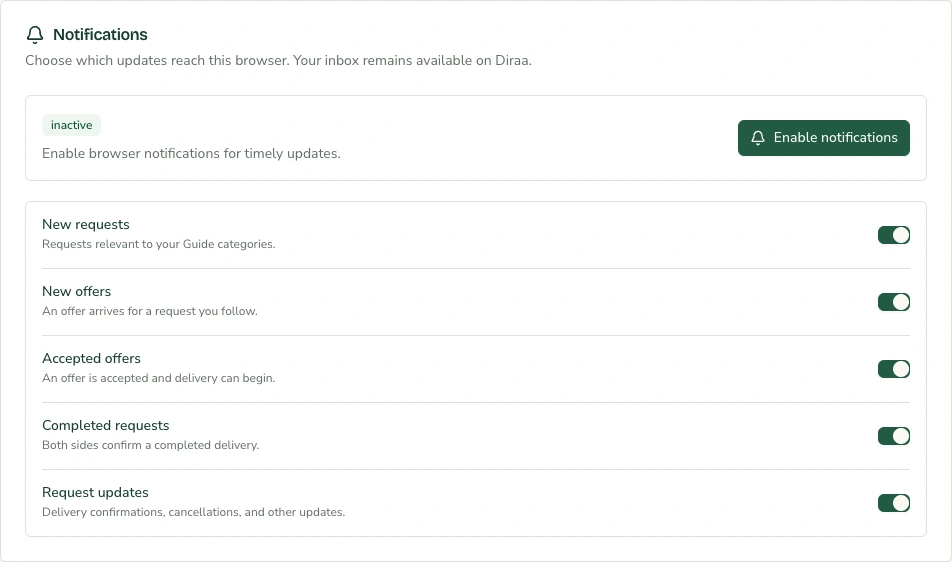
  1. 1Open the profile menu, choose Profile, then open the Notifications tab.
  2. 2Choose Enable notifications and allow the browser permission when prompted.
  3. 3Choose the types of updates you want. Changes are saved as you change the controls.
  4. 4Repeat on every phone or laptop you use. If permission is blocked, allow it in that browser's site settings and try again.

What happens next: The device is registered to receive eligible updates.

Keep in mind

  • Permissions, browser support, device settings and connectivity affect delivery. On an iPhone or iPad, use a supported Home Screen web app where required. Do not rely only on a push alert; check your Diraa inbox.
  • These are device notifications, which can appear when Diraa is in the background or its tab is closed. A completely closed browser, blocked operating-system notifications or an offline device can prevent alerts.
Diraa demonstration screen: Stay informed and keep your account current
Demonstration records are shown. Names, amounts and business details are examples. Select the image to view it at full size.
Back to contents

Chapter 13

Use a daily working routine

Keep your offers, delivery commitments and account details current.

Run a simple daily check

Before you start: Sign in at the start of your working day.

  1. 1Review notifications and your Accepted offers first.
  2. 2Confirm sourcing and delivery plans for active requests before sending more proposals.
  3. 3Check Pending offers and discover suitable new requests.
  4. 4Review open support issues and update your business point when it changes.

What happens next: You stay focused on accepted commitments and genuine opportunities.

Keep in mind

  • If a page fails to load, use Try again. If your account loses verification, resolve that with the Diraa team before continuing.
Back to contents

Glossary & edition notes

Request
A description of something a customer wants a Guide to find.
Guide
A verified sourcing person or business that sends offers and arranges fulfilment.
Offer
A Guide's proposed price, delivery time and explanation.
KYC
Identity verification using a valid document, its number, two photos and residence details.
Delivery point
The place where the customer wants to receive the item.
Reconciliation
The completion-review tab where the customer and Guide confirm what happened.
Settlement
The actual movement of collected money to its intended recipient. A completed request is not proof of a payout.
Audit log
A dated record of an action, who performed it, and its result.

Screenshots use demonstration accounts and records captured from the Diraa interface. They do not show real customer information. Amounts and business details are examples. This manual describes the MVP as of 12 October 2026; later screens and processes may change.

If you cannot sign in or open a request, use Diraa’s published contact number: +255 676 907 776. Have your request ID ready when relevant.

Documentation design references
  • Atlassian how-to article template
  • GitBook documentation structure guidance

Diraa user manuals · English edition · 12 October 2026

HomeContact DiraaPrivacyTerms